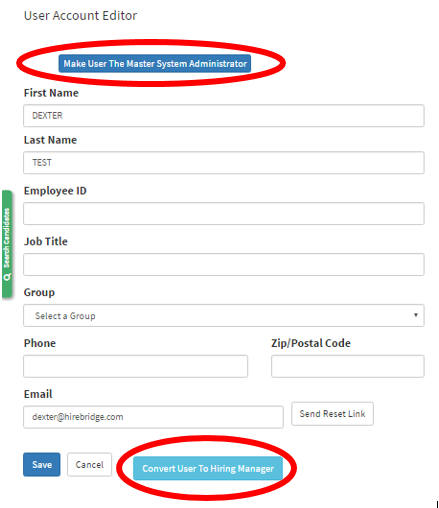
This article will cover how to set user settings, access and permission.
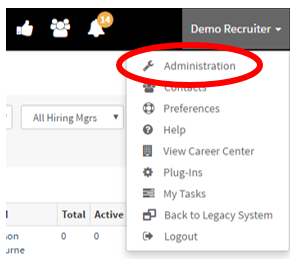
- Once you are logged into your Hirebridge account click on your name in the top right corner. A drop-down menu will appear.
- Select the “Administration” tab in the drop-down menu.
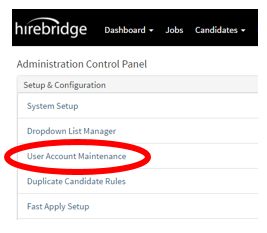
- This will now take you to the Administration Control Panel where you will select the “User Account Maintenance” link.
- The “User Account Manager” page will load and list all the Hirebridge users.
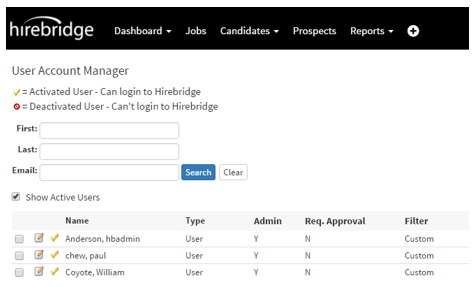
- Next to the user name there are two options, for this tutorial we will select the “Notepad and Pencil” icon.
- This is will take you to the “User Account Editor” page where you can edit user information.
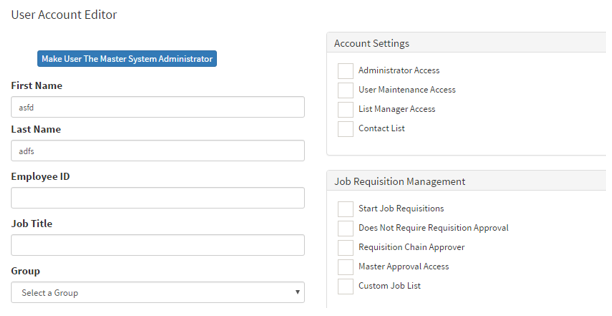
- This page covers the listed below
- Account Settings
- Job Requisition management
- Job Requisition Access
- Reports Access
- EEO Information management
- Candidate Management
To convert a user from a hiring manager to a system admin, you can select the outline below.