Activating & Deactivating User Accounts
This article will cover how to activate and deactivate user accounts.
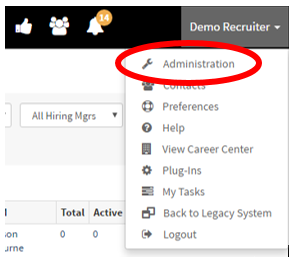
- Once you are logged into your Hirebridge account, click on your name in the top right corner.
- A drop-down menu will appear, select “Administration” in the drop-down menu.
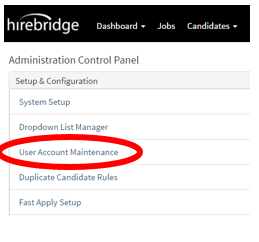
- This will now take you to the Administration Control Panel where you will select the “User Account Maintenance” link.
- The “User Account Manager” page will load and list all the Hirebridge users.
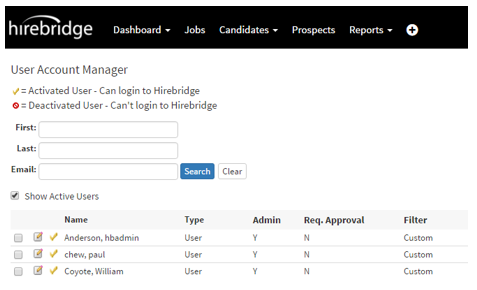
- Next to the user name there are two options.
- Notepad & Pencil – Allows you to edit the user information, access, and filters
- Check Mark (Activated User) – Clicking this allows you to deactivate an account.
- Crossed out Circle (Deactivated User) – Clicking this allows you to activate the user.