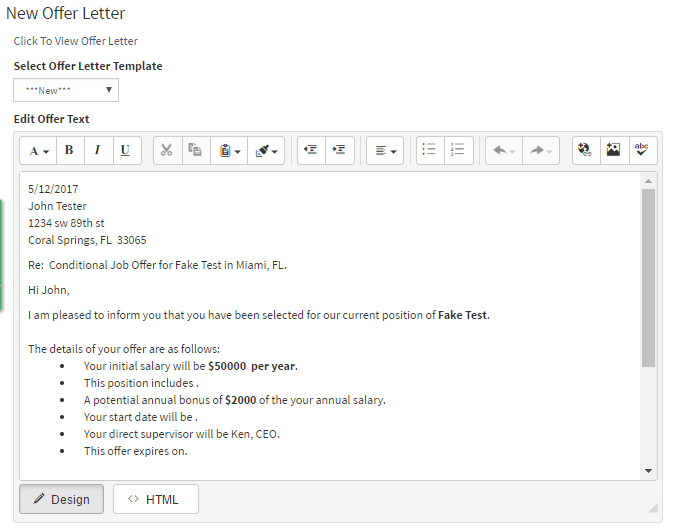
This article will cover how to add, edit, and delete Offer letter templates.
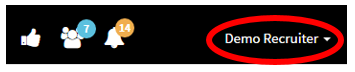
- In the top right corner click on your username to open the drop-down menu
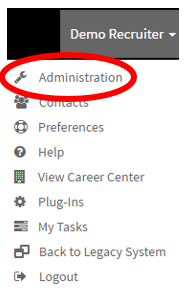
- Once the drop-down menu is open click on the “Administration”
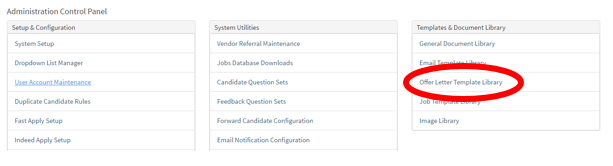
- You will now be on the “Administration Control Panel”
- This is where you would want to select ”Offer Letter Template Library” in the Templates &Document Library section.
- This will take you to the Offer Template Library (Pictured below)

We will review the page icons listed below
- Add Template (Blue Button top left) - Allows you to Add a template
- Notepad & Pencil – Allows you to edit the template
- Multipage – Copies the template into a new one
- Trashcan –Deletes the template
This is the main page where you will manage all offer templates.
- After clicking “Add Template” it will load the Offer Letter Template Editor.
- This is where you can edit offer letters.
- To the right of the template editor page, there are merge fields.
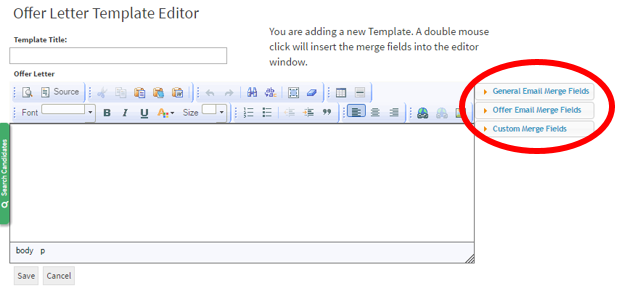
- Merge fields allow you to reference specific information that will automatically populate in the letter.
- Example: [@CANDIDATENAME@] will reference the candidate name and will populate it to whoever you send the letter to.
Below is an offer letter example before it is sent to a candidate.
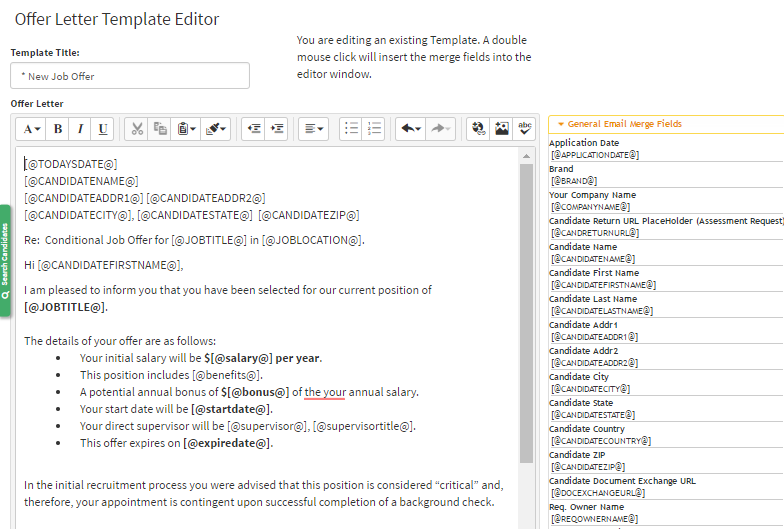
Below I have included an example of how it will look like when using the template.