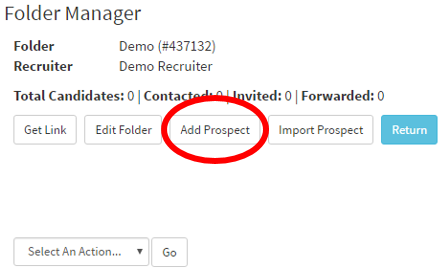
This article will cover how to add a new Prospect
(Before you can add a prospect you need to have a folder created)
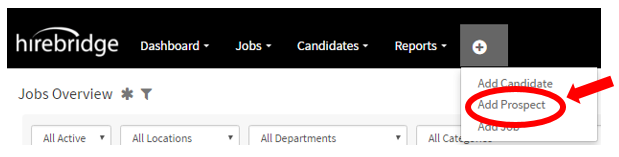
- On the tabs in the top left corner click the plus sign. (Pictured below)

- This will open a drop-down list where you will select “Add Prospect”.
- This will now take you to the "Add Prospect" page, which allows you to add the prospect information.
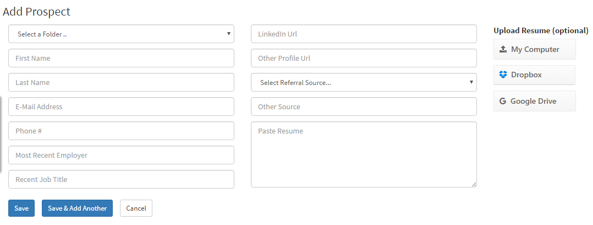
(First name, last name, and referral source are required to save a prospect.)
- Once you have provided the required information, you can either save by clicking the blue "Save" button or save and another prospect by clicking the blue "Save & Add Another" button.
- To import candidates via a CSV file, visit the Prospect folder first, then click the Import Prospect button, then choose the Import CSV tab, then follow the file layout and upload instructions.
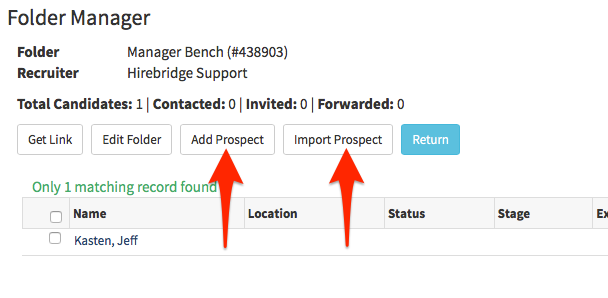
- If you have actual resume file(s) that you want to upload, then click the Import Prospect button, then choose the Import Resume(s) button, then follow the file layout and upload instructions.
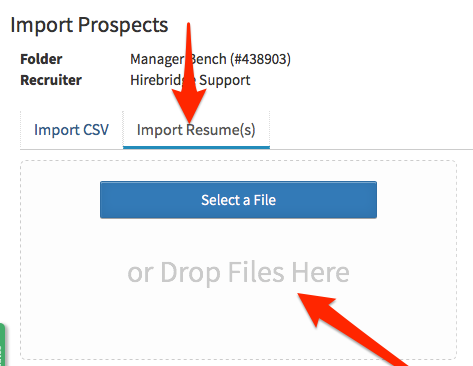
Other ways of Adding a Prospect.
- Click on the “Prospects” tab.

- After you have clicked Prospects tab you should be in the "Prospect Folders" page.
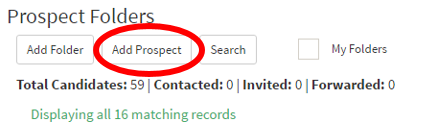
- You can add a Prospect by clicking the "Add Prospect" button circled below while on the "Prospect Folders" page.
- Another way you could also add a prospect is by also clicking a folder like below
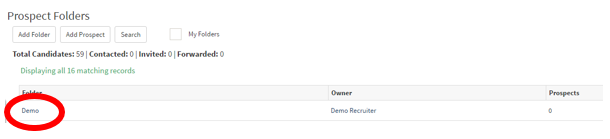
- Once in the folder you can also click the “Add Prospect” button and add prospects in by clicking the folder.