This article will give you an overview of the candidate’s profile.
It will be broken down into four sections.
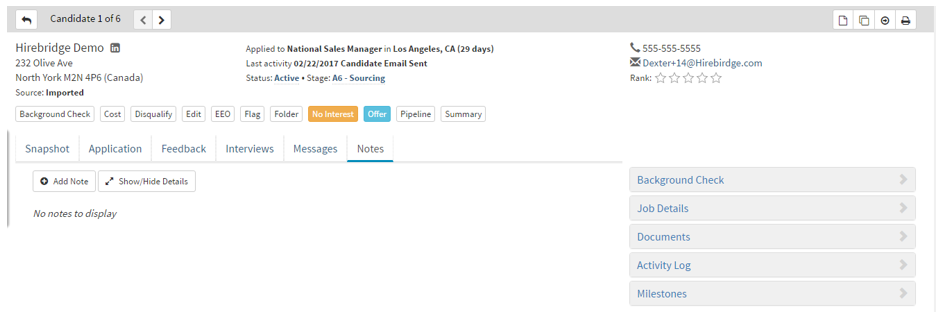
The first section we will cover is the top left corner.
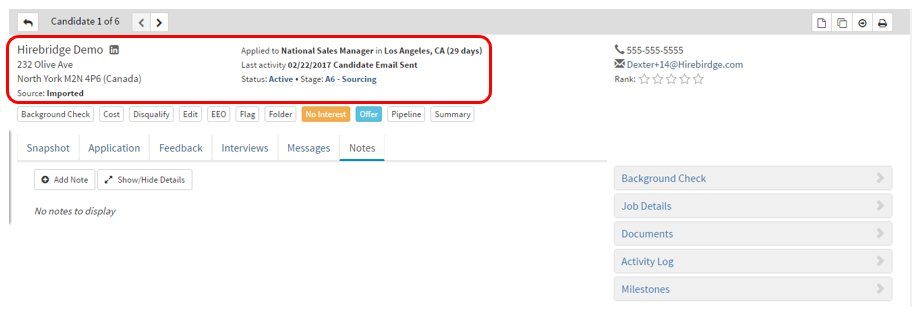
- To the left of the section gives the Candidates name, address and where the candidate was sourced from. Next to the name you can also click on the “in” icon to search for the candidate on LinkedIn.
- To the right of the section “Applied to” displays what position the candidate has applied along with location and date since application.
- “Last Activity” displays the date since last activity on the candidate profile.
- “Status” displays the status of a candidate, along with “Stage” that shows where the candidate is in the hiring process. (Both status and stage can be changed in the candidate profile)
The second section we will be covering is outlined below.
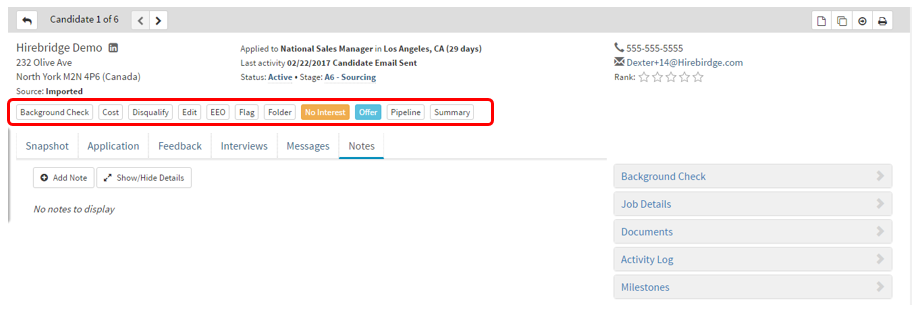
Background check – Sends you to the “Background Investigation Request Form” this is where you can send a candidate to be screened.
Cost – This is where you can add expenses to hiring the candidate.
Disqualify – This is where you can disqualify a candidate. To qualify the candidate, click on the “Qualify” button. (The qualify button appears if the candidate has been disqualified)
Edit – This allows you to edit the candidate profile.
EEO – Allows you to view the candidates EEO information.
Flag – Flagging a candidate will display a flag in the indicator section of the candidate profile.
Folder – Allows you to copy the candidate's profile into a folder.
No Interest – Lets you no interest a candidate
Offer – Sends the candidate an offer letter. Based on manager approval chain it must be approved by other managers.
Pipeline – This sends the candidate into a pipeline where qualified candidates can be easily identified.
Summary – This is where you can write a small summary about the candidate.
The next section we will cover the outlined area.
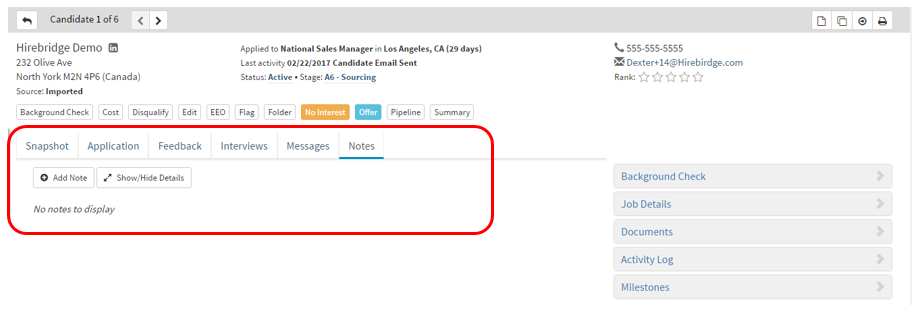
- Snapshot – Provides a quick look at the candidate's resume
- Application – Shows the candidate responses received from the application process
- Feedback – Shows manager feedback and score on question sets.
- Interviews – This is where you can either schedule an interview or log interviews.
- Messages – This is the message board where you can see e-mails that have been sent out to the candidate. This tab also allows you to create a message for the candidate.
- Notes – This is where you can write notes relating to the candidate.
In this last section, we will cover the outlined area
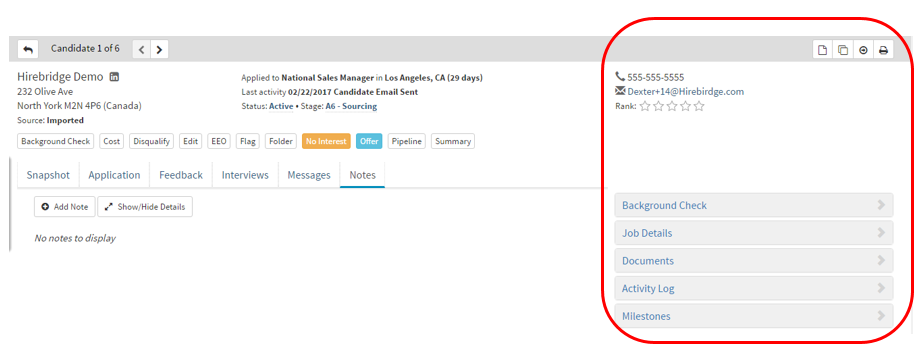
Starting from the top right corner of the outlined area.
The section will vary based on candidate information and company requirements.

 |
Single Page Icon - | enables you to quickly view the candidate's resume |
 |
Multiple Page Icon - | allows you to copy the candidate |
 |
Circled Arrow Icon - | allows you to move the candidate |
 |
Printer Icon - | Opens the candidate profile into a print friendly window. |
 |
Telephone Icon - | Provides you with the candidate's E-mail. |
 |
Mobile Phone Icon - | Provides you with the candidates mobile number. |
 |
Letter Icon - | Provides you with the candidate's E-mail |
- Rank – Allows you to rank the candidate based on stars.
- Additional Applications – shows other requisitions the candidate has applied to
- Background Check – This tab you to send background checks and view background check status.
- Job Details – Gives you information about the Job Requisition
- Documents – Allow you to download, replace, delete and add candidate documents
- Activity Log – Shows the full history of changes and activity in the candidate profile.
- Milestones – are stages to where the candidate is in with the workflow.