Job Requisition Templates
This article will cover how to create, edit and delete a Job Template.
Job templates give you the option to select pre-made requisitions in the Job Editor page.
What Is A Job Requisition Template
A Job template is a pre-built model of a job requisition that includes the key data components for many of the jobs that you will open.
Why Use Job Requisition Templates
Job requisition templates make it easy to ensure consistency in your job descriptions and postings, and overall can streamline the job creation process as it eliminates repetitive data entry for commonly used job attributes, like job description, skills, department, categories, salary information and job types.
Creating A Job Template
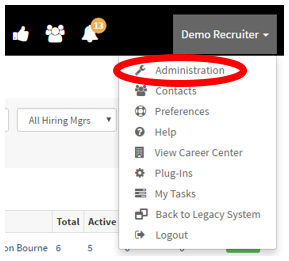
- To Add, Edit & Delete templates click on your name in the top right corner
- A drop-down menu should appear with a list of links, click on “Administration” tab.
- Once on the Administration Control Panel in the “Templates & Document Library” section click on “Job Template Library”.
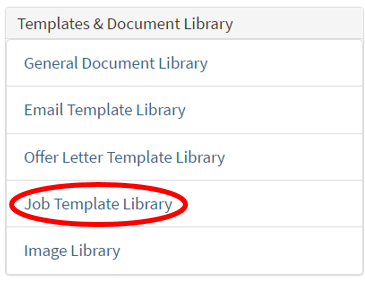
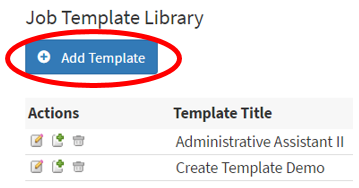
- This is where you would add/edit Job Templates.
- To edit a job template, click on the “Pencil & Notepad” icon on the left.
- To Copy the template, click on the “Notepad and Plus” icon in the middle.
- To Delete the template, click on the “Trash Can” icon to delete a template.
- In this guide click on the “Add Template” button in the top left corner to add a template.
- This is where you would add all the information pertaining to the job.
- Once you have finished scroll down to the bottom and click save.
- The job template should now be available as a drop-down option when creating a job requisition.
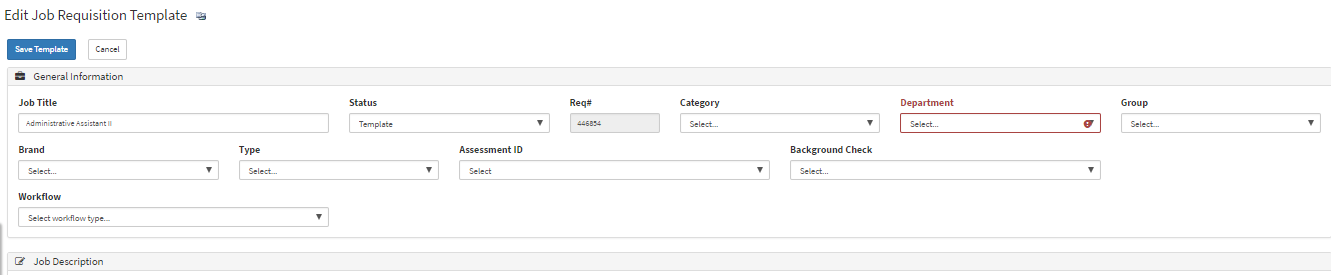
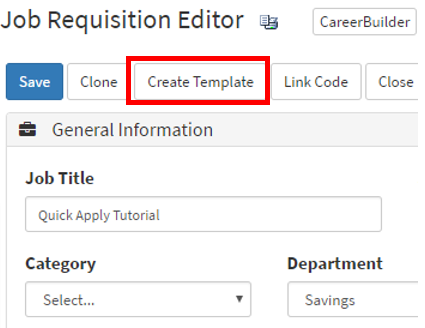
- If you have an existing requisition you can turn it into a template by selecting the "Create Template" button in the Job Requisition Editor page.
- It will now take you to the Requisition Template page where you will be required to save the template.