Adding/Editing Candidate Summary
This article will show you how to add a candidate summary.
- The picture below displays where you will see the summary.

- The first step to adding a summary is by selecting a candidate profile.
- Once you are in the candidate profile click on the summary tab.
(Pictured Below)
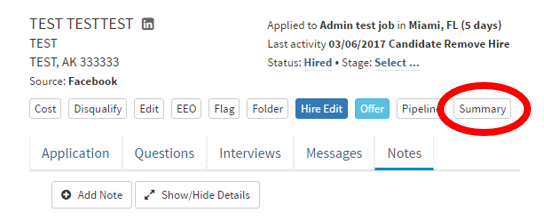
- After you have clicked on the “Summary” tab a pop-up will appear. (Picture below)

- Once you have entered a summary you can now save it by clicking on the blue “Save” button.
- If you want to edit the information repeat the steps and you will be able to edit the summary of the candidate.