This article will cover how to use the requisition template search tool.
Requirements:
-Job Template Created with information populated.
-Templates must be assigned a category.
- To view the Requisition Template Search Tool select the plus icon in the navigation bar then select "Add Job". (Image provided below)

- This will now take you to the Requisition Editor page.
- On this page, you can focus on templates based on category or just type in the type-ahead text box.
- To focus the search select from the drop-down then search by using the type-ahead text box to the right.
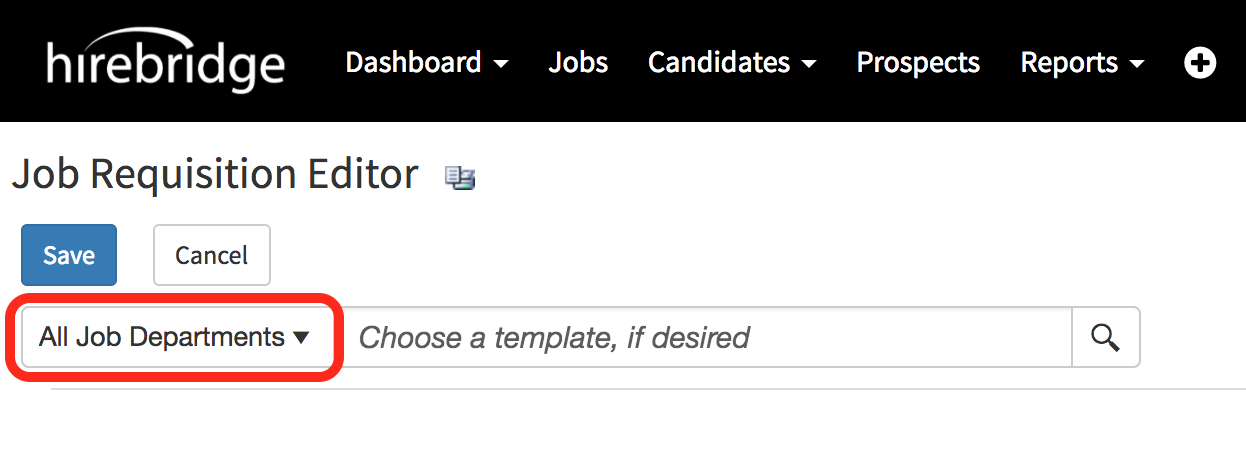
- To use the type-ahead text start typing the template name.
- In the example image below when you start typing a list of job templates will appear that contains the text typed. (Example Image Below)
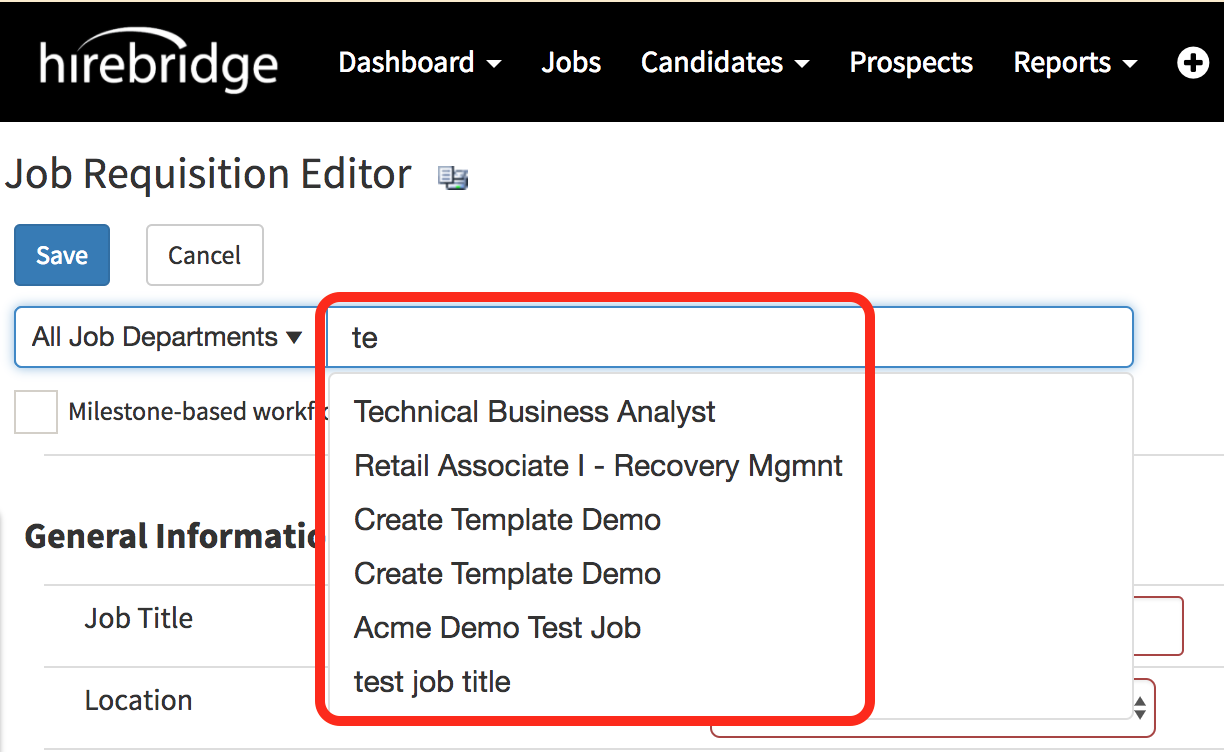
- After selecting the specific job template it will load the presets from that selected template.
- The Job Description and requirements are prefilled with the template information.
- A few more required fields might need to be filled depending on company requirements.
Important Note
- If you focus the search on a specific category and do not see the template. The category for that template has been not selected.
- Apply the "All Job Departments" filter and the search engine will look for the templates in all categories.
Video Guide