The Busy/Free search feature allows you to view attendee's schedule so that you are able to find a suitable time for everyone in the interview.
Requirements:
- Microsoft Exchange/Office 365 account attached to your Hirebridge account.
(How to attach Microsoft Exchange/Office 365 Account) - Google Calander account attached to your Hirebridge account.
(How to attach Google account) - Access enable in Microsoft/Google settings forfrom Hirebridge to your Calendar.
- The first step is to find a candidate
- Once in the candidate profile select "Interviews"
- Next select "Schedule Interview"
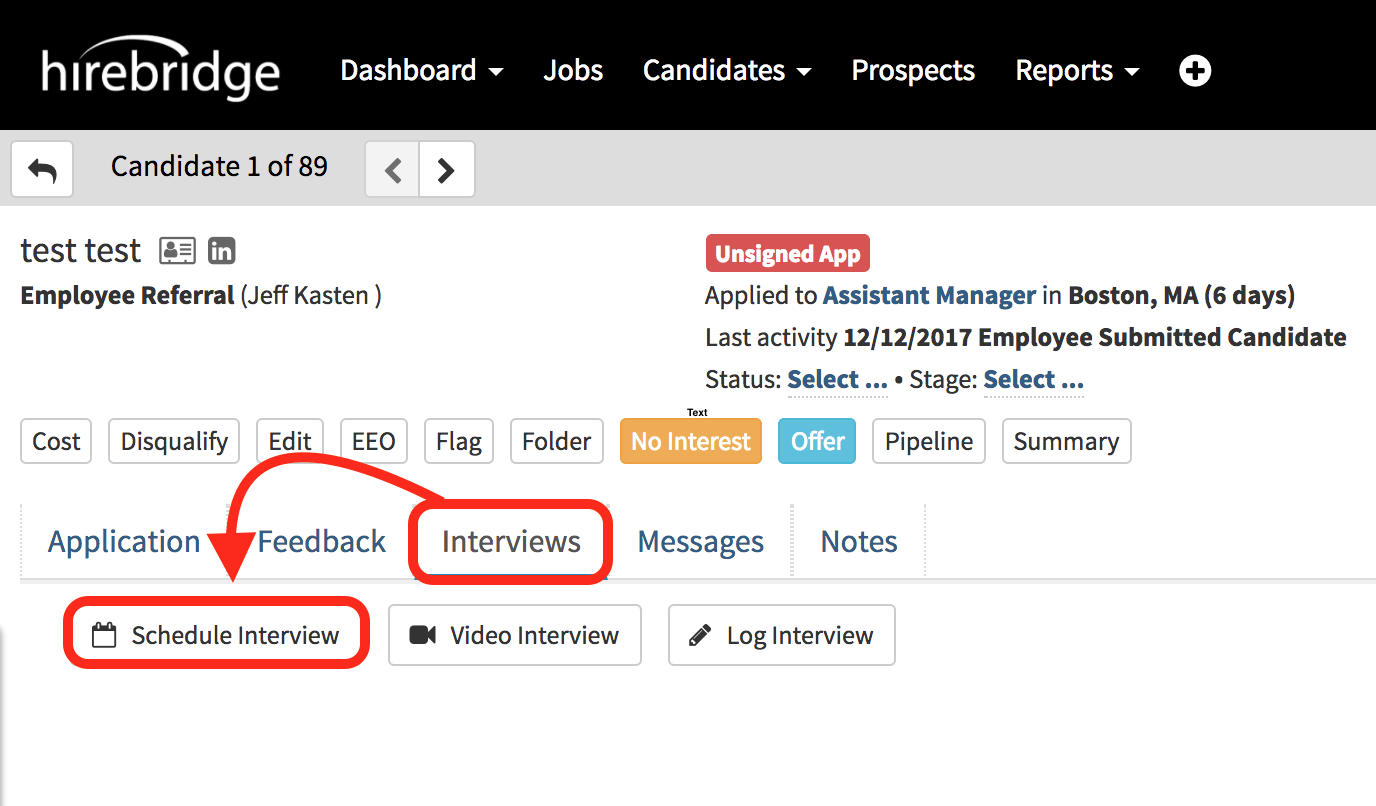
- This will now take you to the interview scheduler
- On this page, you will need to have your Microsoft Exchange/ Google accounts connected.
(See above the top for guided instructions on how to connect your Microsoft Exchange/Google calendar accounts connected.)
Important Note
If you do not see the outlined "Magnifying Glass" icon your Microsoft Exchange/365 or Google account is not connected. Also if you do not see your email address in the drop-down list menu your calendar account is not connected and you will not be able to see the "Magnifying Glass" icon. (Outlined in the images below)
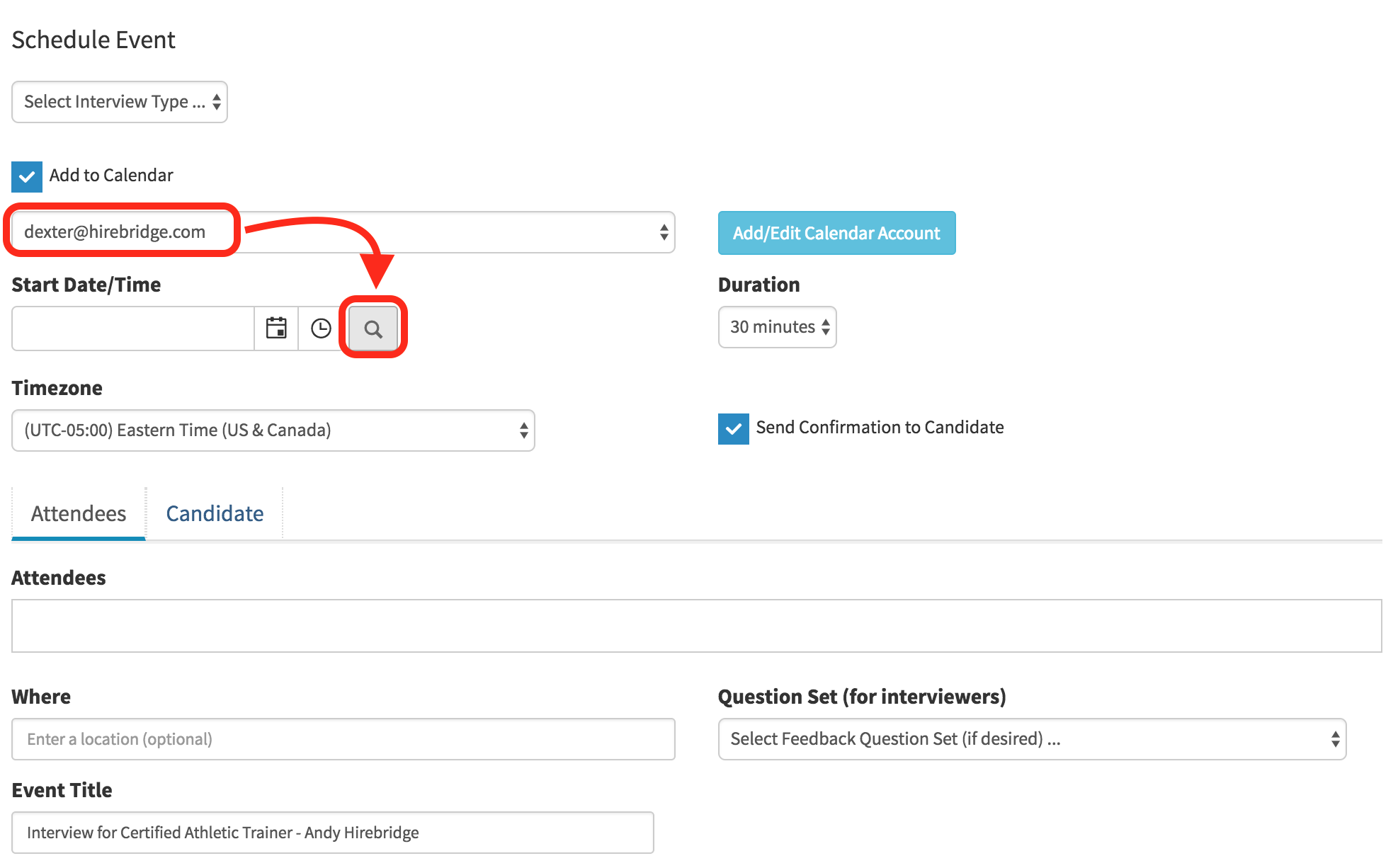
- Once your account is connected you will then need to attach the attendees and set the start date/time.
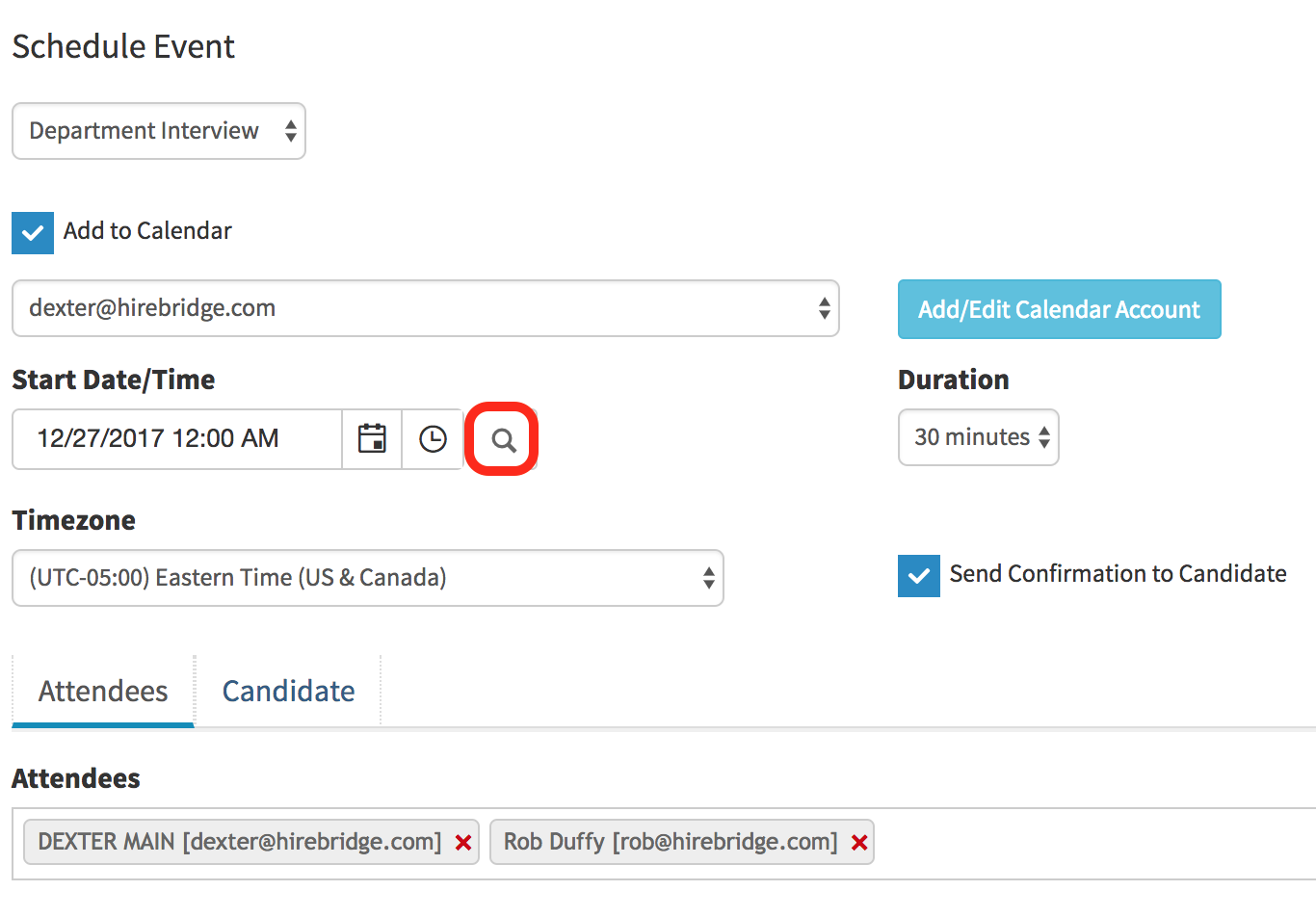
- After you have populated the Attendees and Start date/time select the "Magnifying Glass" icon. (Below is an example of fields being filled out and the magnifying glass icon outlined in red.)
A pop up will appear where you can see the attendees available time
- Outlined in red are the attendee's name and time column
- To the left is the time broken down into 15-minute increments
- You can see in this example that Rob Duffy is not available from 9:00 am - 9:45 am also marked in yellow.
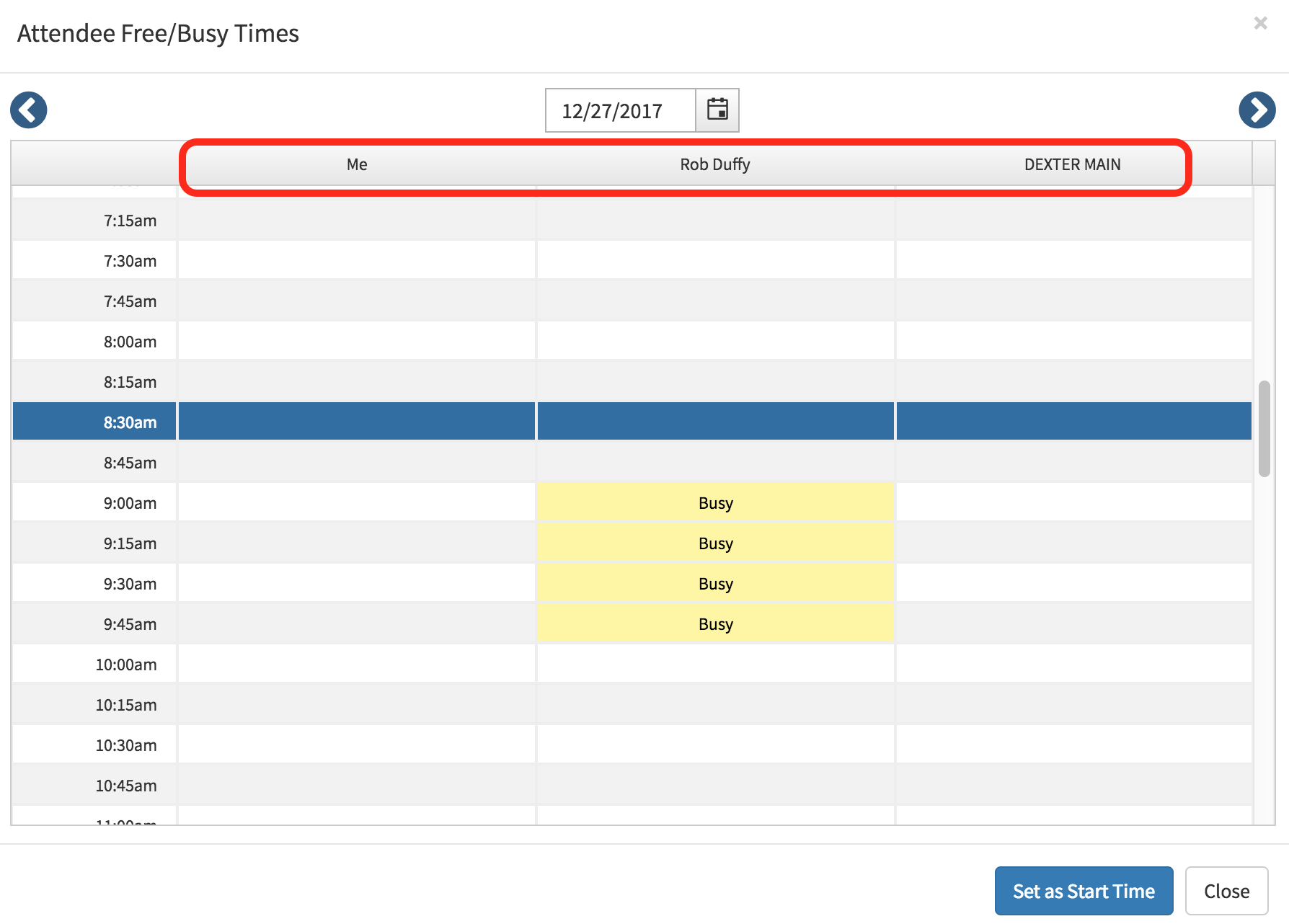
- Once you have selected a starting time, select "Set as Start Time" button on the bottom right corner.