This tutorial will cover how to attach your Microsoft Exchange/Office 365 to the Interview Scheduler.
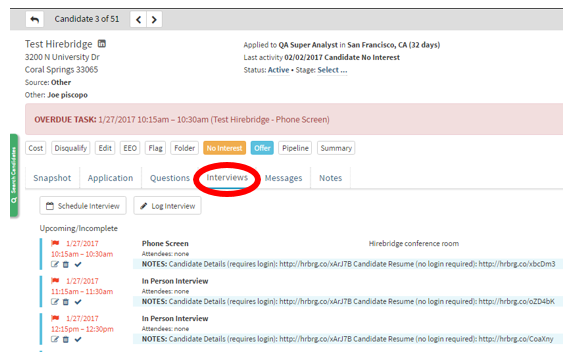
- Once on a candidate’s page, click on the “Interviews” tab as outlined in red below.
- The "Interviews" tab gives you a history of scheduled interviews.
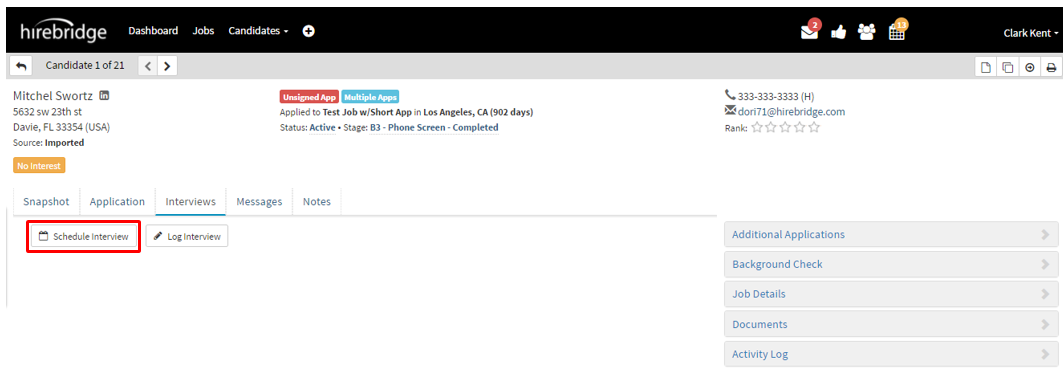
- This tab also allows you to schedule an interview with the candidate.
- To schedule an interview, click on the “Schedule Interview” button outlined in red below.
- After you have clicked on the "Interviews" tab, the "Schedule Event" page will load (Pictured below).
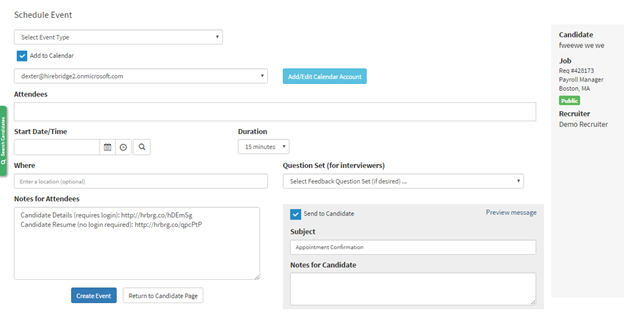
- In order to have the event added to your calendar, you would need a Microsoft Exchange or Gmail account so the event can be added to that account calendar.

- To do so click on the blue "Add/Edit Calendar Account" button. A pop-up should appear asking for the type of account you would be using.

- For this example, I have selected MS Exchange / Office 365
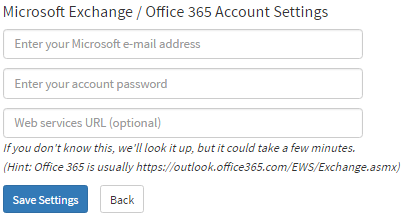
- It will now ask for Account login credentials and web services URL
- Web Services URL is optional and will automatically populate.
- If you are certain of the Web Services URL you can enter it into the textbox below.
Microsoft Outlook (2007 and later)
- If you are Using Microsoft Outlook(2007 and later) with Exchange EWS Connector.
- Hold CTRL and right click the Outlook icon.
- Select the Test E-Mail Auto Configuration from the menu and enter the email address on the desired exchange server.
- Once that is complete select Test
- The URL will be listed as the "Availability Service URL".
- Once the credentials have been entered select "Save Settings"