This tutorial will cover how to attach your Google account to the Interview Scheduler.
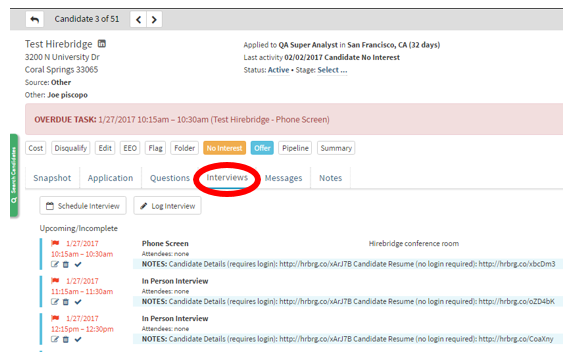
- Once on a candidate’s page, click on the “Interviews” tab as outlined in red below.
- The "Interviews" tab gives you a history of scheduled interviews.
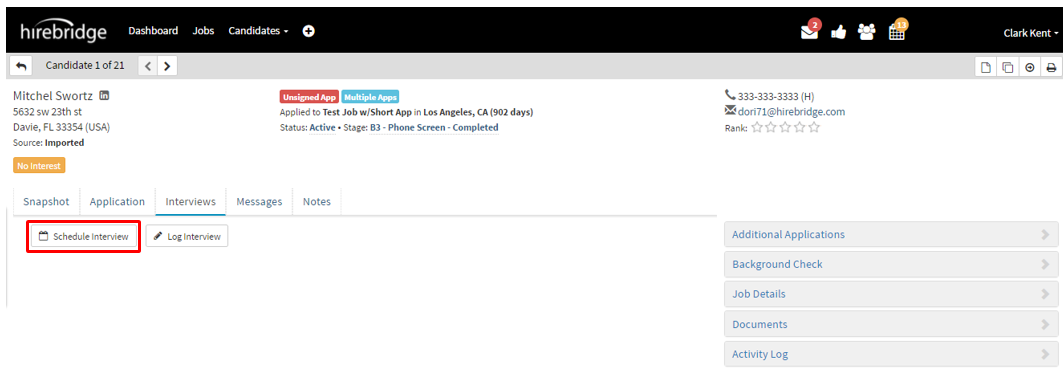
- This tab also allows you to schedule an interview with the candidate.
- To schedule an interview, click on the “Schedule Interview” button outlined in red below.
- After you have clicked on the "Interviews" tab, the "Schedule Event" page will load (Pictured below).
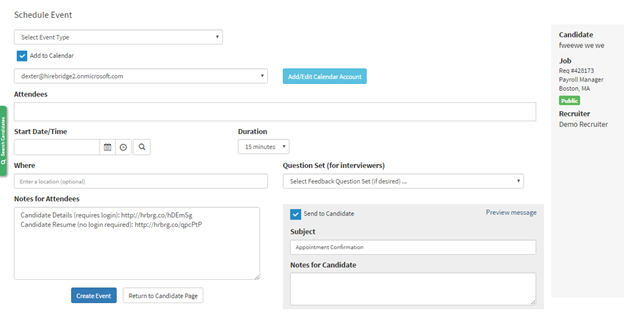
- In order to have the event added to your calendar, you would need a Microsoft Exchange or Gmail account so the event can be added to that account calendar.

- To do so click on the blue "Add/Edit Calendar Account" button. A pop-up should appear asking for the type of account you would be using.

- For this example, I have selected Google Apps
- It will now ask for Google account login credentials.
- After entering your login credentials select "Next"

- The page will now redirect to the "Hirebridge Interview Scheduler" where your google calendar will now be attached to the interview.