This article will guide you on how to post a requisition on Monster
Requirements
- To send jobs to Monster you will need to have the Monster Account details setup.
- Have a requisition that you would like to send to Monster.
There are two ways you can send a requisition to Monster. Next to each requisition name, there is a "Notepad & Pencil" icon and a "Briefcase" icon selecting both gives you the option to send the requisition to Monster.
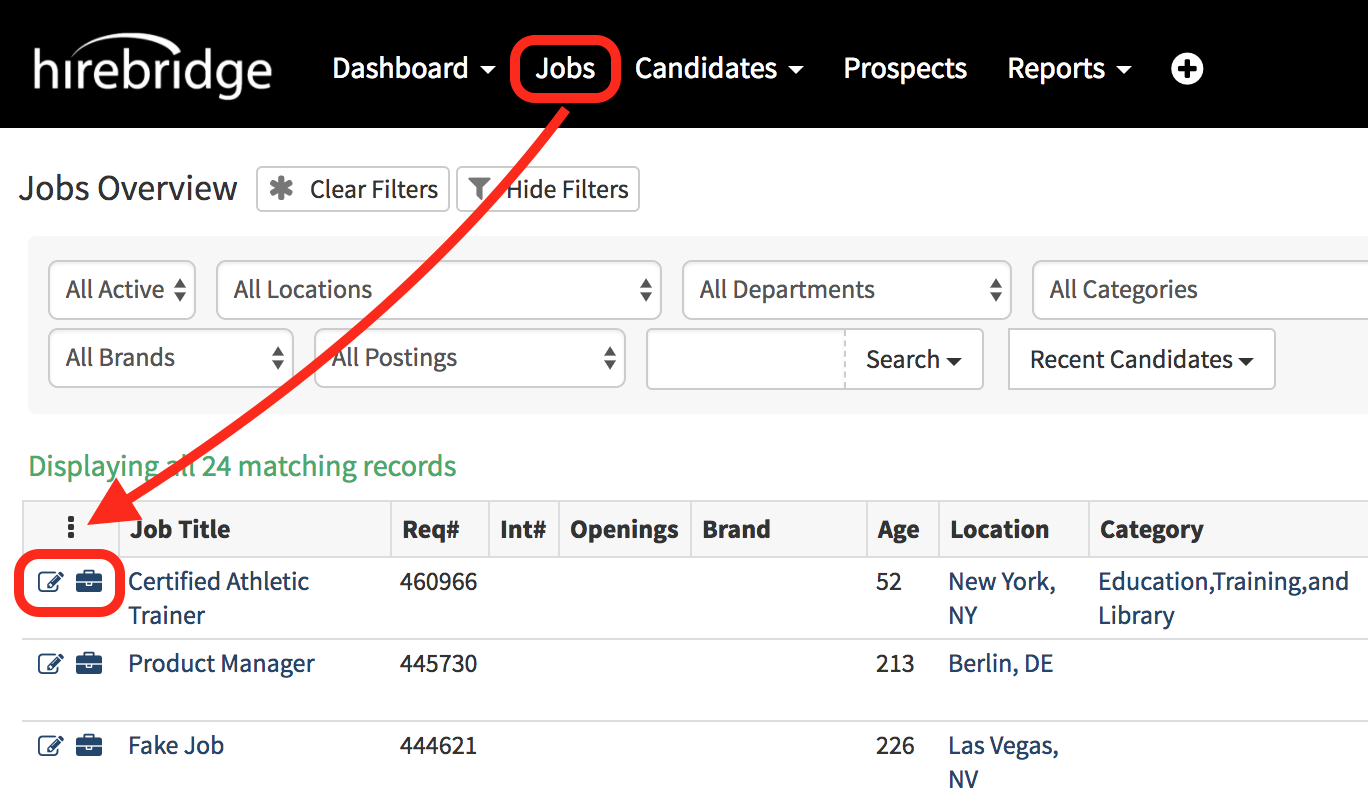
We will cover how to send a requisition to Monster using the "Notepad & Pencil" icon. This icon is the one to the furthest left.
- After selecting the "Notepad & Pencil" icon it will take you to the "Requisition Editor" page.
- On this page select the "Monster" icon outlined in the image below.
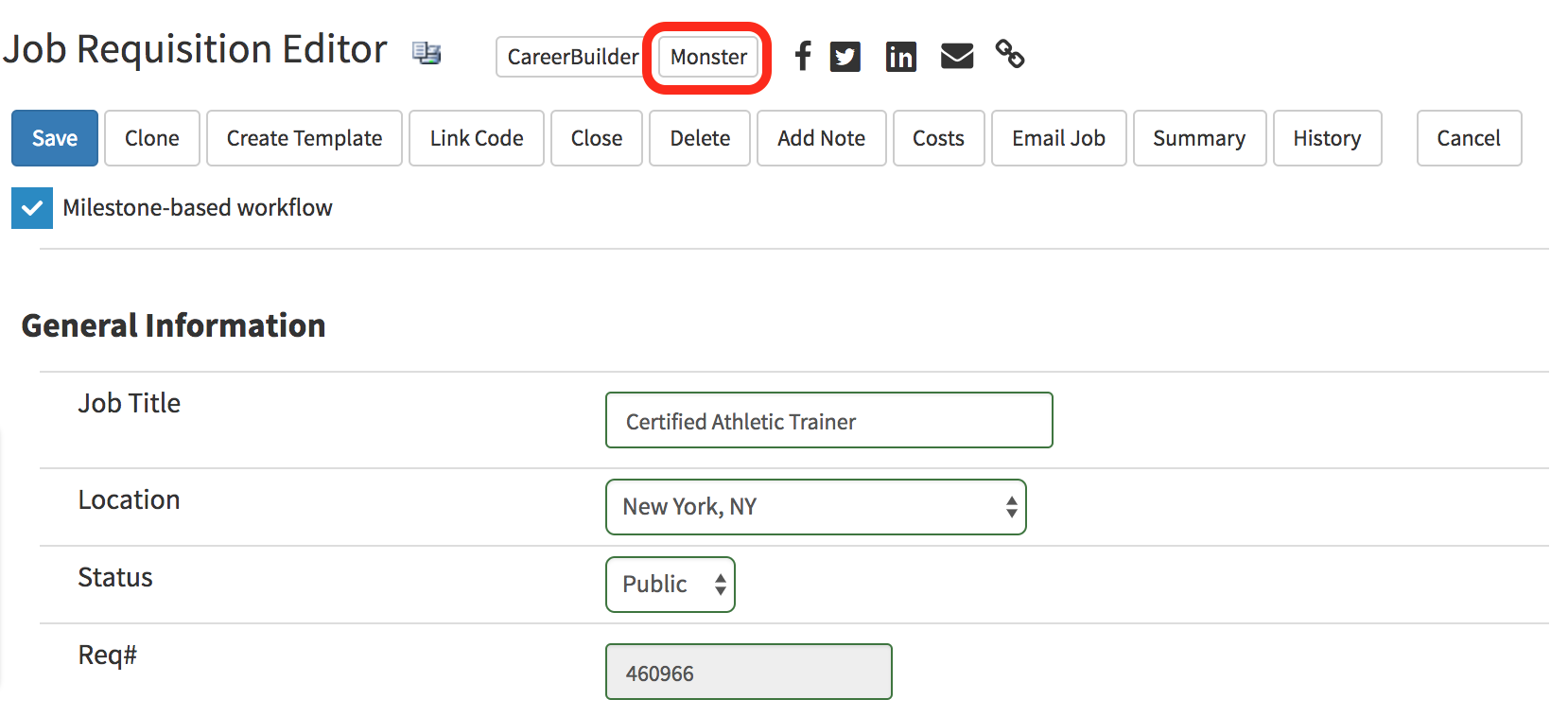
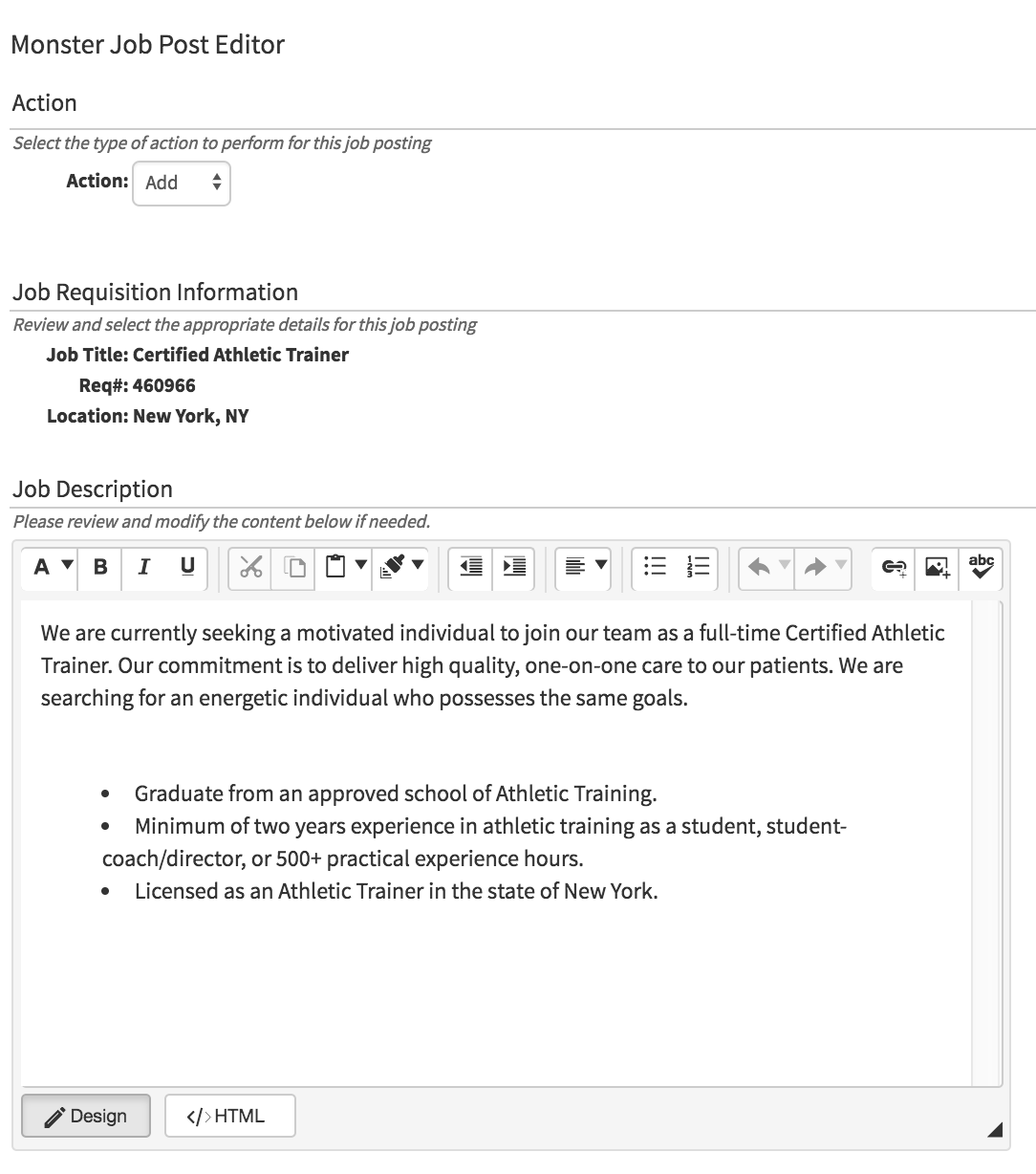
This will take you to the "Monster Job Post Editor" page. (image provided below)
- In the Action section, you will need to select the type of action to perform for the job posting.
- Job Requisition Information - Displays the requisition Title, Requisition number, and Location.
- Job Description - Gives you the ability to edit the job description in the text box provided.
Monster Speficific Information
- Job Status - Select the status of the job; full time, part-time, etc.
- Job Type - Select if the job is seasonal, temporary, intern, etc.
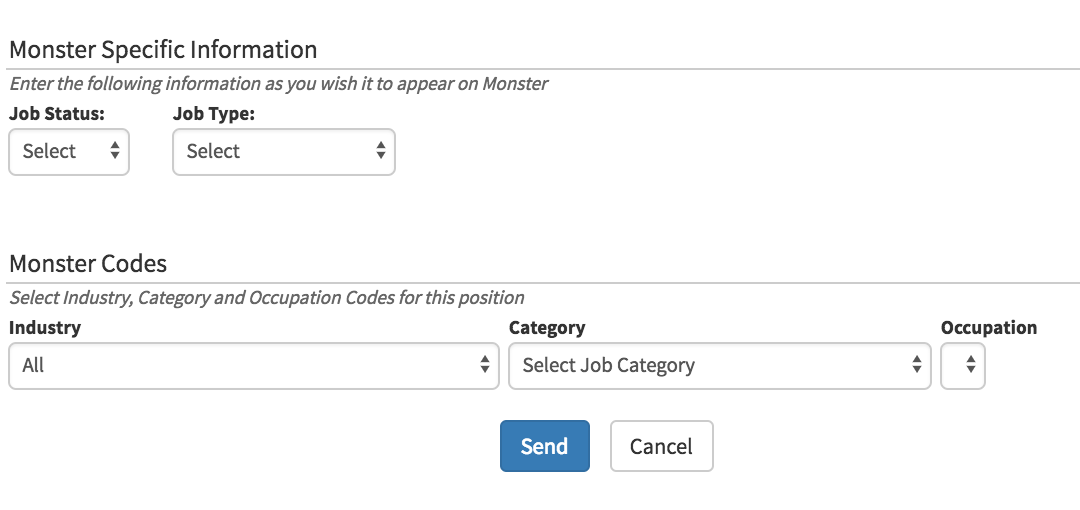
Monster Specific Codes
- Industry - Select which industry this position is related to
- Category - Select the job category
- Occupation - after selecting the category the occupation drop-down will generate.
Once all of the fields have been selected the blue "Sent" button at the bottom of the page.