This article will guide you on how to post a job to CareerBuilder.
Requirements
-CareerBuilder Bulkpost Account credentials
-CareerBuilder posting availability
-Requisition Created in Hirebridge
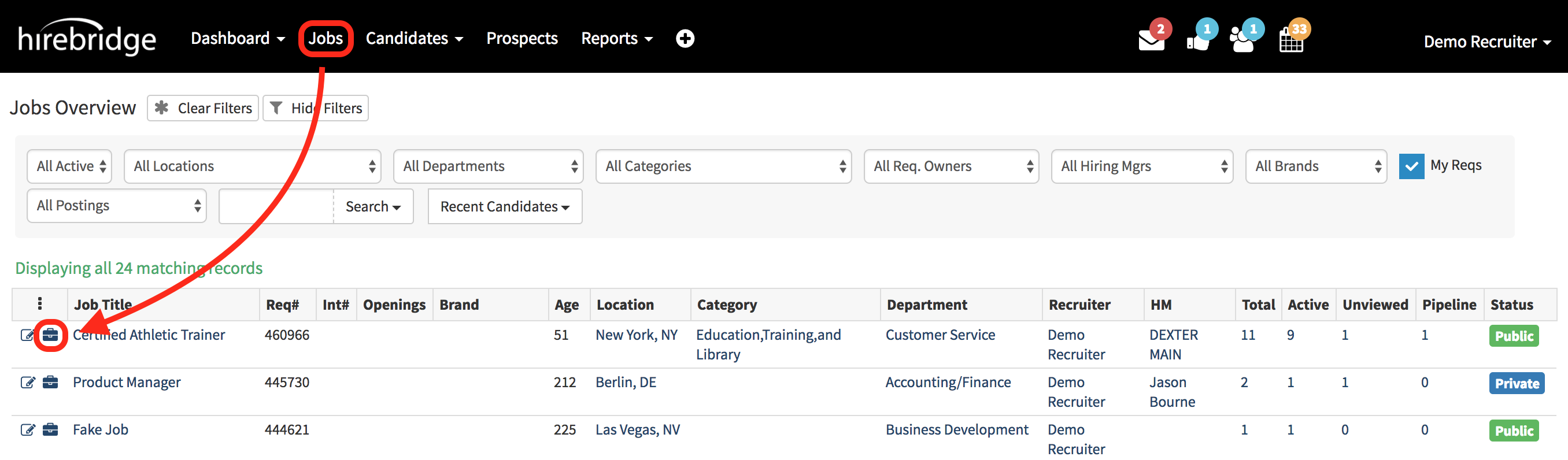
- There are two ways to access first way is to find a requisition and select the "Briefcase" icon next to the job title.
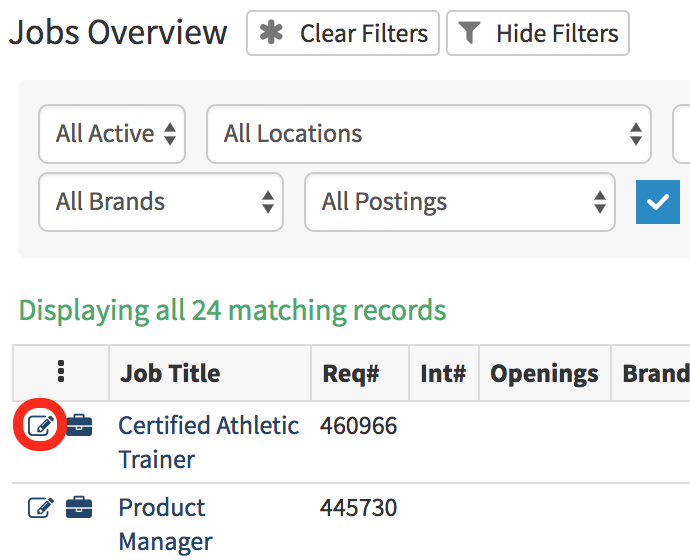
- The Second way to access the CareerBuilder editor is by selecting the "Notepad & Pencil" Icon
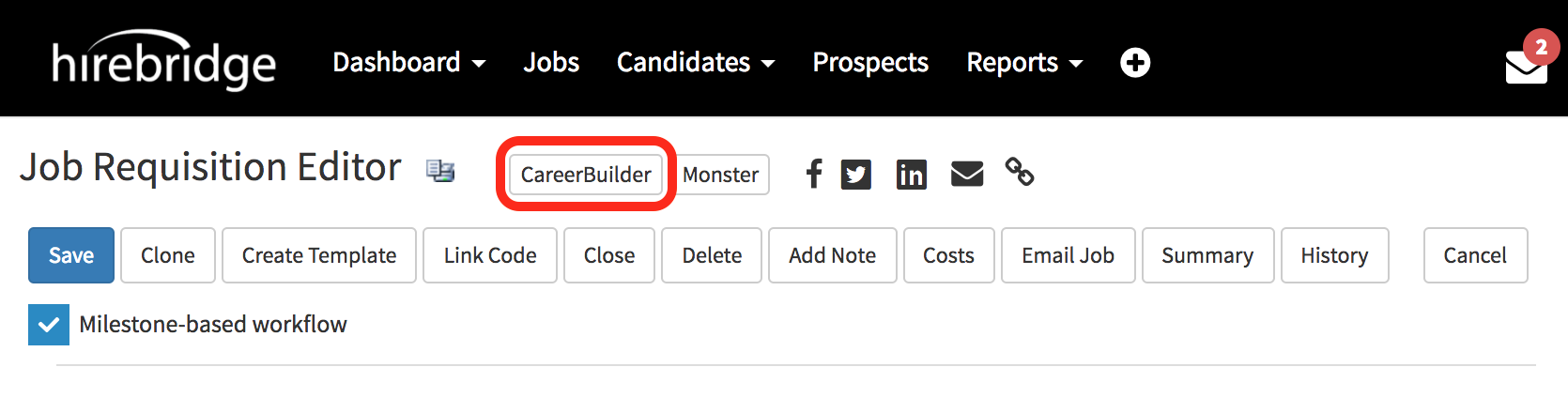
- After selecting the "Notepad and pencil icon" it will take you to the Requisition Editor page where you will select the "CareerBuilder" icon
- Both icons will now take you to the Job Overview Page.
- On this page is where you select the "Post" tab then select "CareerBuilder"
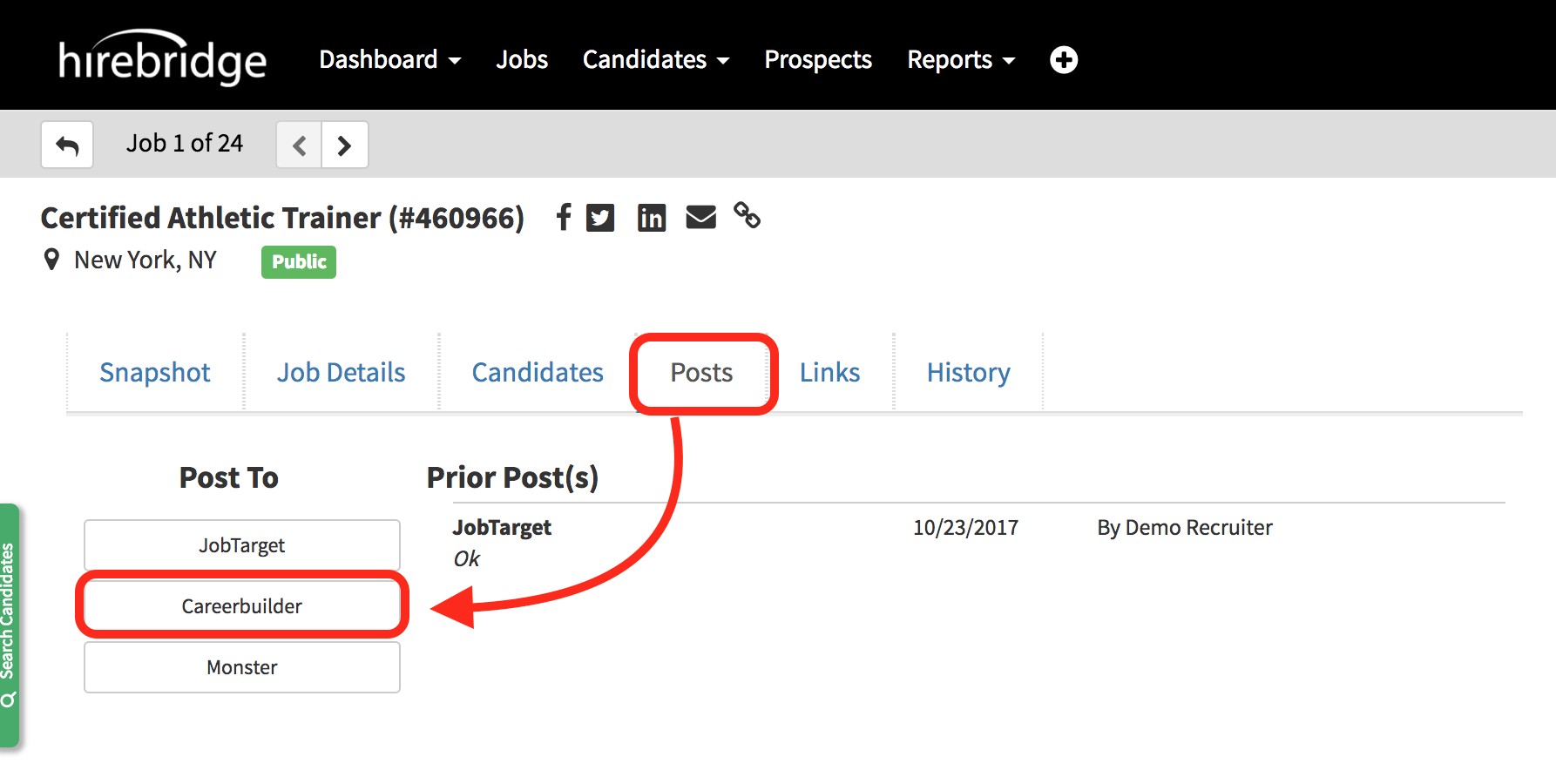
- After selecting "CareerBuilder" it will now open the CareerBuilder Job Post Editor page.
- At the top of the page you will need to enter the Careerbuilder credentials
- Bulkpost Email - Provided to you by a Careerbuilder rep
- Bulkpost Password - Provided to you by a Careerbuilder rep
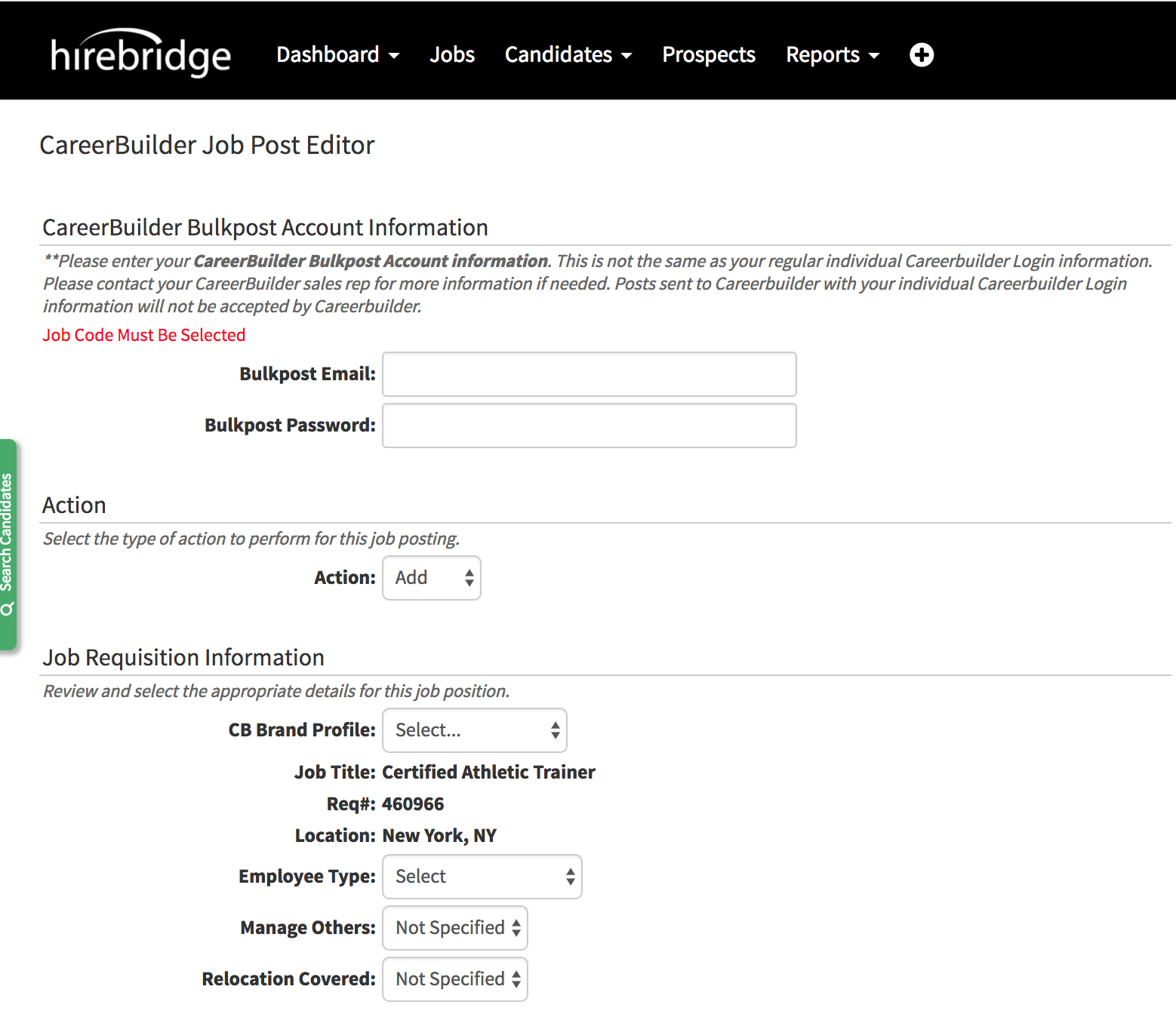
- On this page, you are allowed to select the Action you would like to perform for the specific requisition.
- The next section to fill out would be the "Job Requisition Information"
- CB Brand Profile - select the CareerBuilder Brand Profile
- Employee Type - select if Full-Time/Part-Time/Seasonal etc.
- Manage Others - Management position
- Relocation Covered - Cost of relocation covered yes or no.
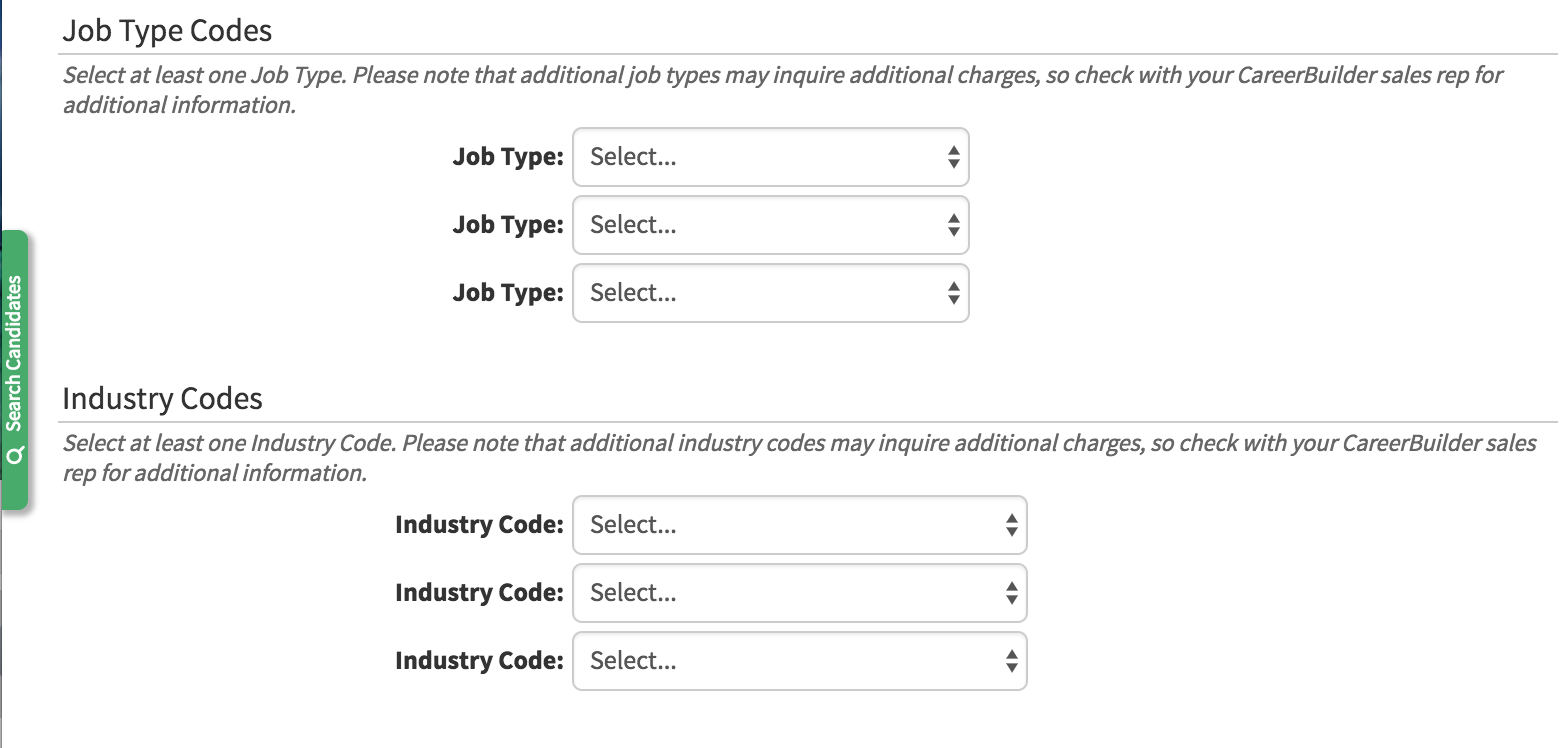
- Job Type - Select at least one job type
- Industry Code - Select the industry in which the requisition fits into.
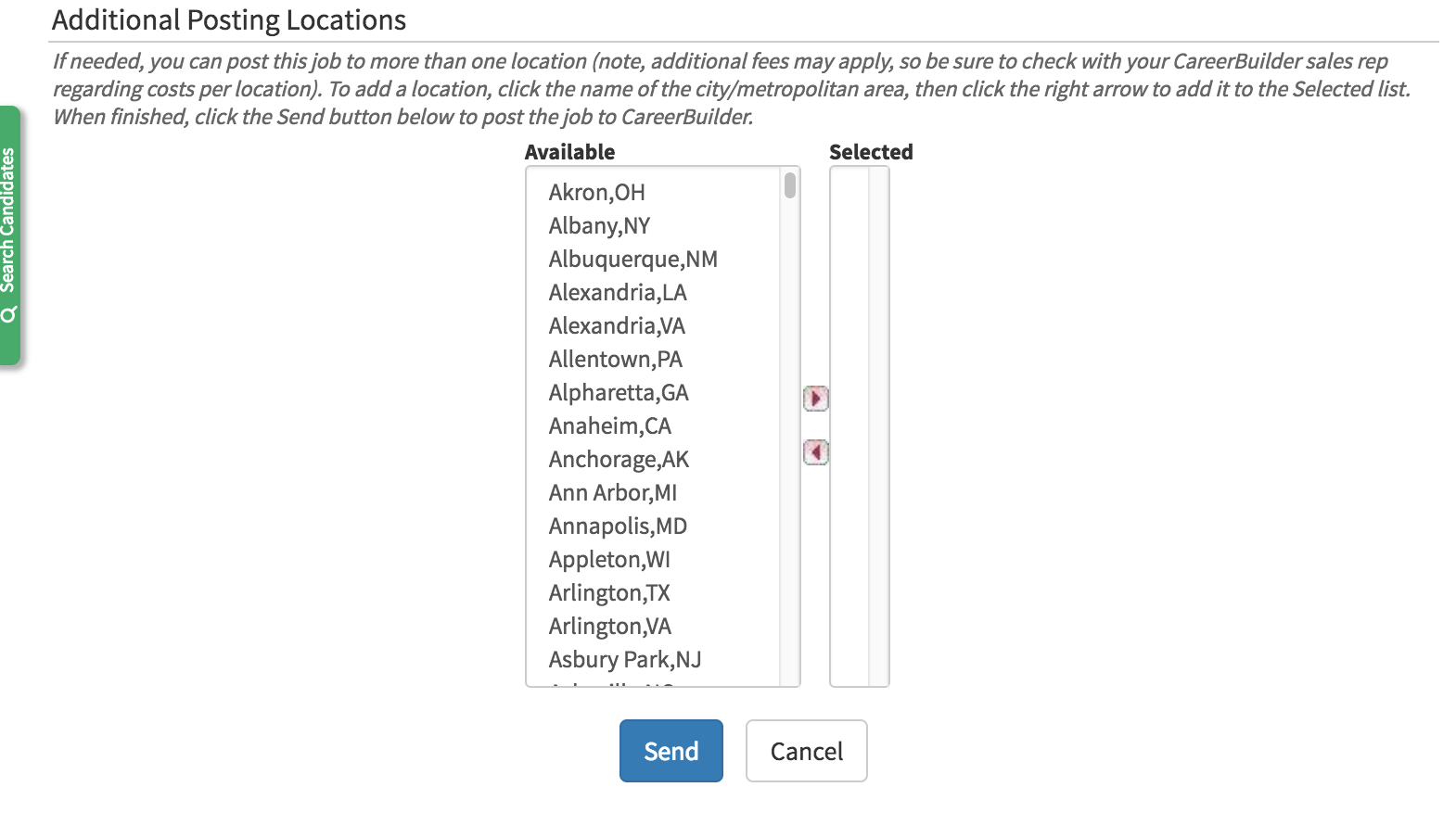
- The last step to do is to select from the Available locations and then move them into the selected column.
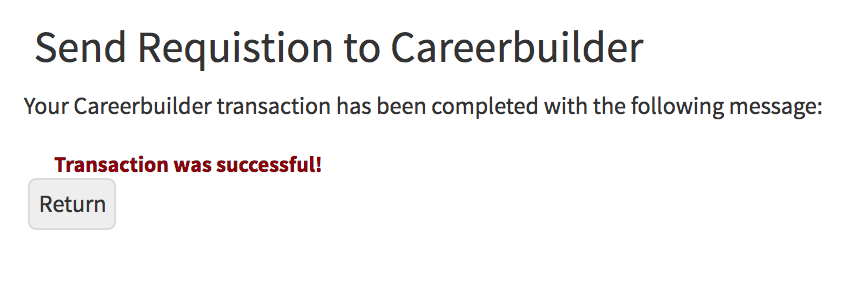
- Once you select "Send" a confirmation page like below will appear.