How to E-Mail a candidate
In this tutorial, we will be covering how to email a candidate.
- Visit a candidate's record, then click on the “Messages” tab.
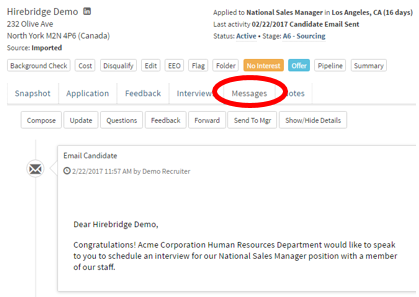
- This section will display all the messages sent/received from the candidate.
- To compose a new email to the candidate click on the “Compose” tab.
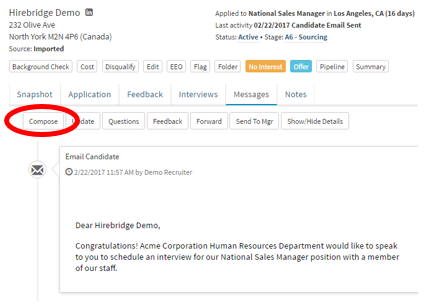
- A new popup window should appear to email the candidate.
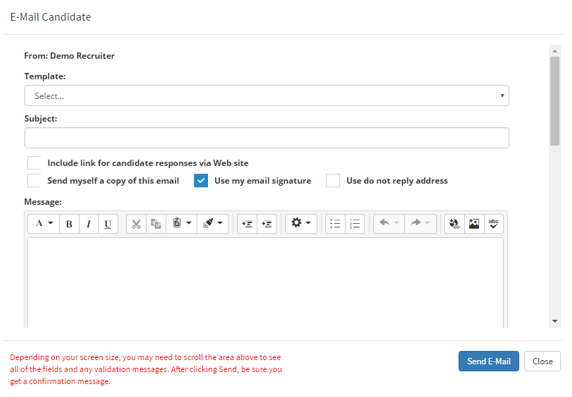
- The next step is to select a "Template" from the drop-down list.
- Place a subject into the subject box
- Then based on preference, select the checkboxes needed. (Checkboxes described below)
Checkbox Descriptions -
- Include link for candidate responses via Web Site - This option provides the candidate with the ability to respond back to you through the Hirebridge platform instead of his/her email program. It will automatically turn on the Use do not reply address so the candidate cannot reply via his/her email program.
- Send myself a copy of this email - send yourself a copy of the email
- Use my email signature - uses your signature at the end of the email
- Use do not reply address - This allows you to use a do not reply email address instead of your personal address.
- After you have selected either a template or a custom email to send to the candidate just click the blue “Send E-Mail” button to send the e-mail to the candidate.
Candidate Reply
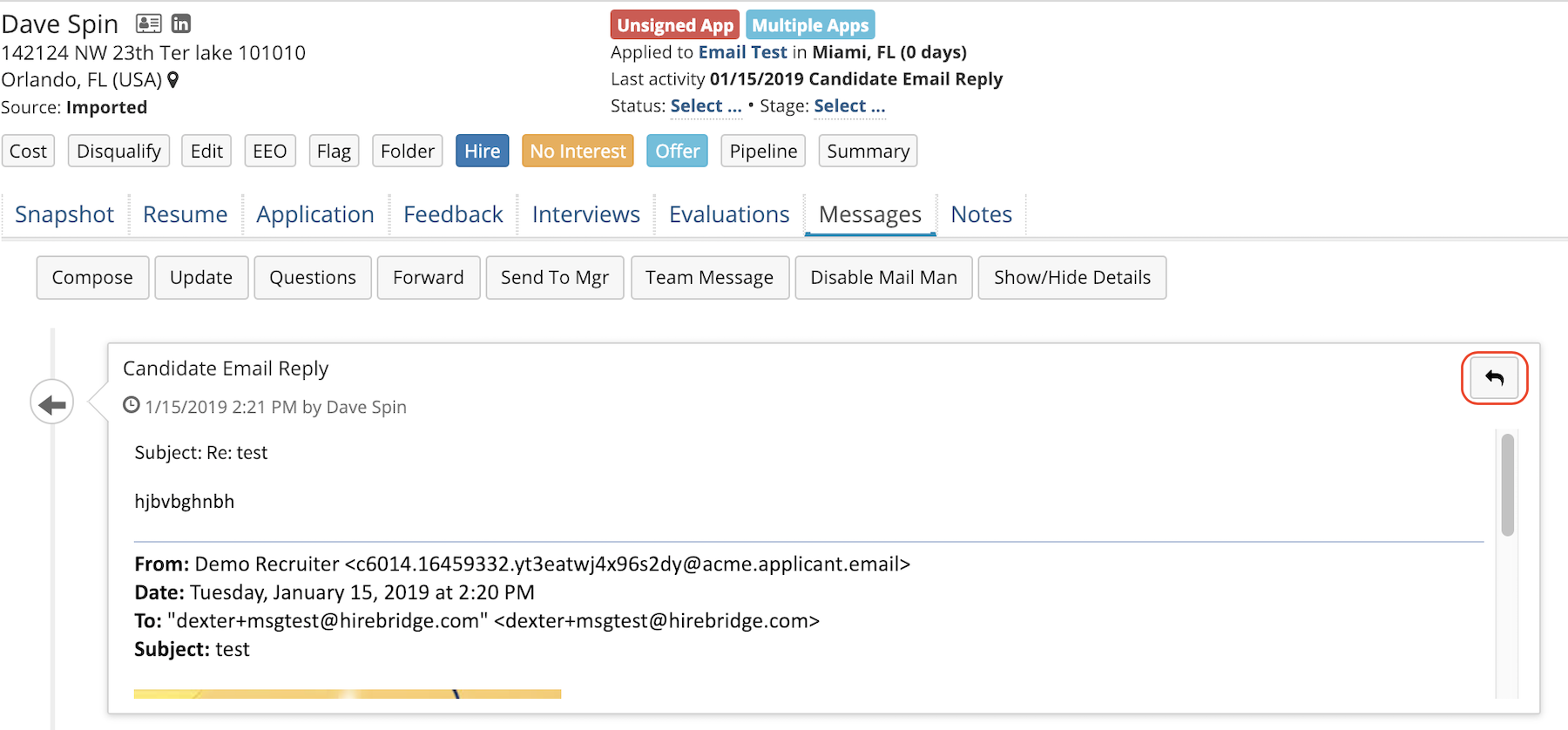
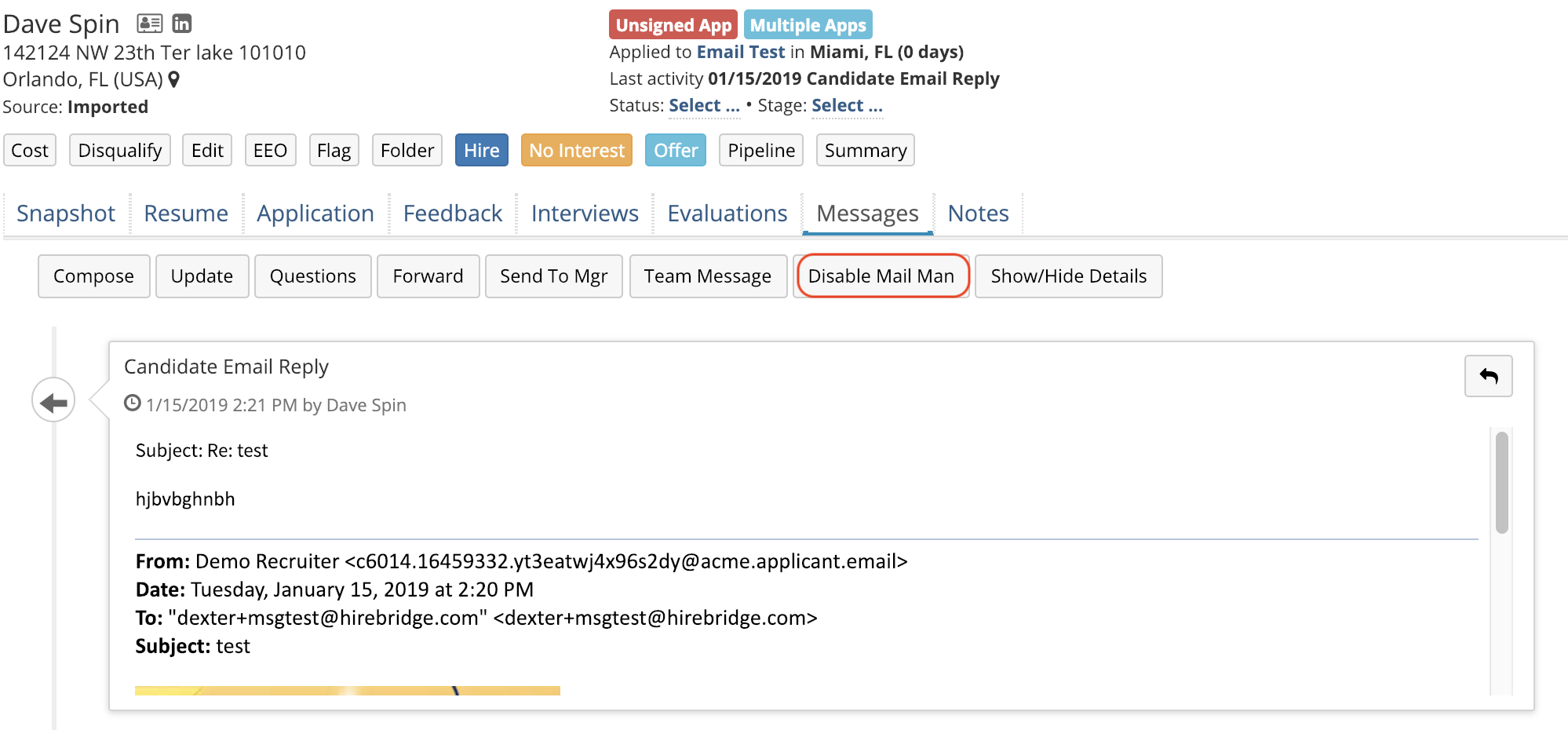
- Candidate replies will be displayed in the messages tab of the candidate profile
- To reply to the candidate reply select the reply arrow icon in the top right corner of the candidate email reply.
Disable Reply
- If you no longer want to receive a reply from the candidate select Disable Mail Man.
- Once this is selected the candidate will then no longer be able to reply and receive a bounce back email.
- To enable candidate reply select the Enable Mail Man (available after selecting Disable Mail Man).
Tip
You can also email candidates quickly by clicking on the candidate's email in the top right corner.
