This article will cover how to use the candidate team role messaging.
This messaging feature is designed to message Hiring Managers and Recruiters that are attached to the requisition based on role. This feature will allow you to create a team message that will be logged in the candidate profile.To view the messages you will have to be logged into the Hirebridge system.
Requirements: User/Hiring Manager/Recruiter attached to a requisition with a role.
- To use this feature go into a candidate profile
- Once in a candidate profile select the "Messages"
- Then select "Team Message"
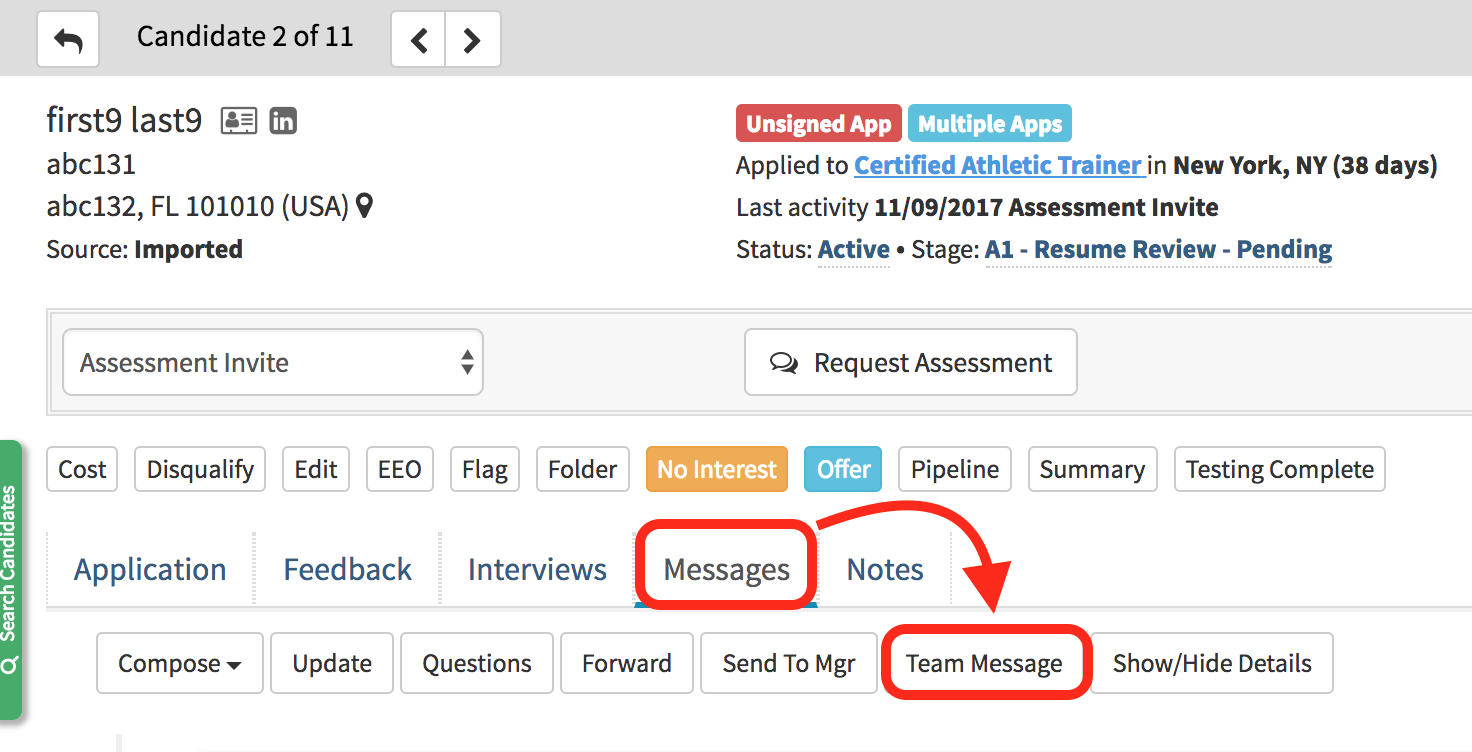
When you select "Team Message" a pop-up will appear (image below)
- You will then need to select who you would like the message to be sent out to.
- Checking the checkbox will attach the user to the message
- The username will be outlined in parenthesis (Outlined example in the image below)
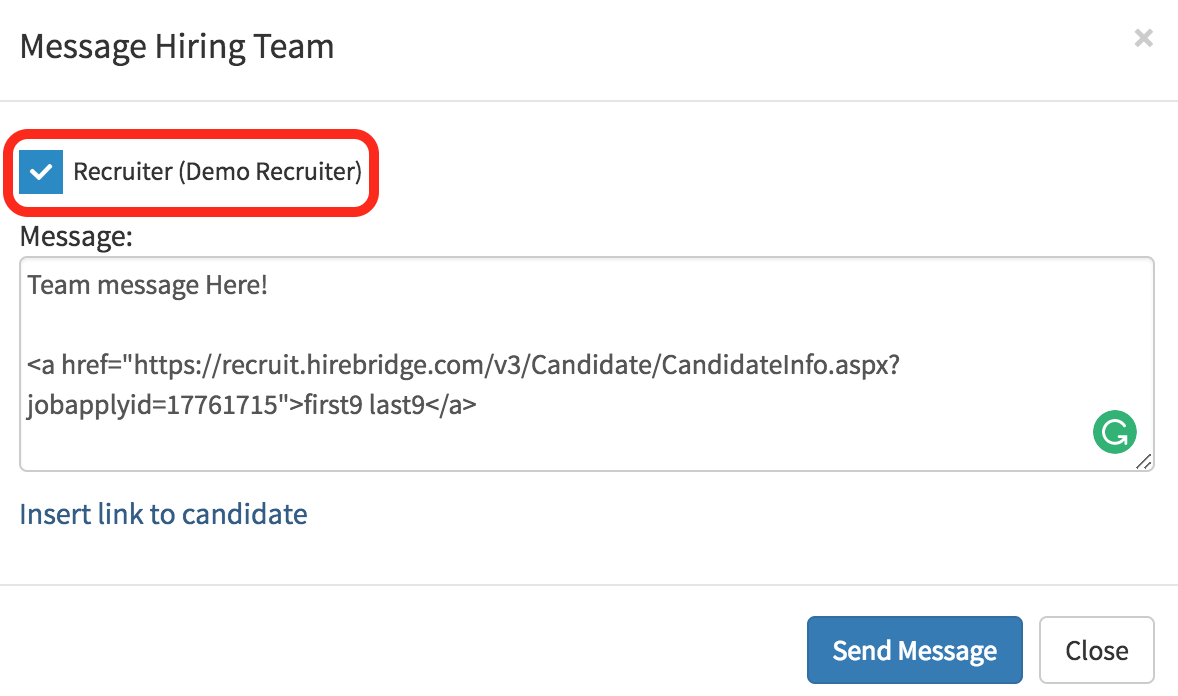
- Once you have attached the users available you can now enter the message in the text box provided under "Message:".
- After you have included the message you now have the next option to "Insert link to candidate" this will include a quick link to the candidate profile.
- This link will allow the message receiver to quickly access the candidate profile.
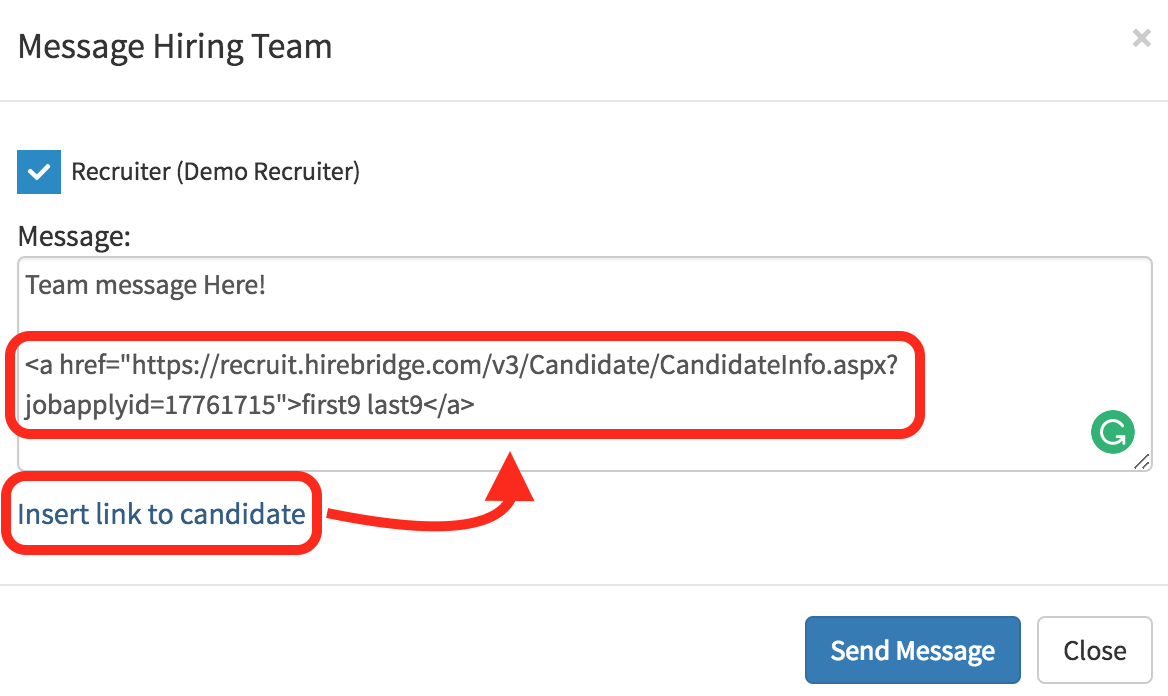
- If you are satisfied with the team message select "Send Message". This will now send the message to the attached users within the Hirebridge system.
The receiver of the message will now see a notification in the Hirebridge system.
- The envelope icon will now be outlined (example image below)

The messages page will then pop up and display the
- Date/Time - Display the time and date of the message
- From - Display who the message is from
- To - The receiver / Trashcan icon allows you to delete the message
- Message - The message will display the Recipients of the message the subject of the message, the content of the message and a link if included to the candidate profile.
To delete the message select the Trashcan icon under the To column
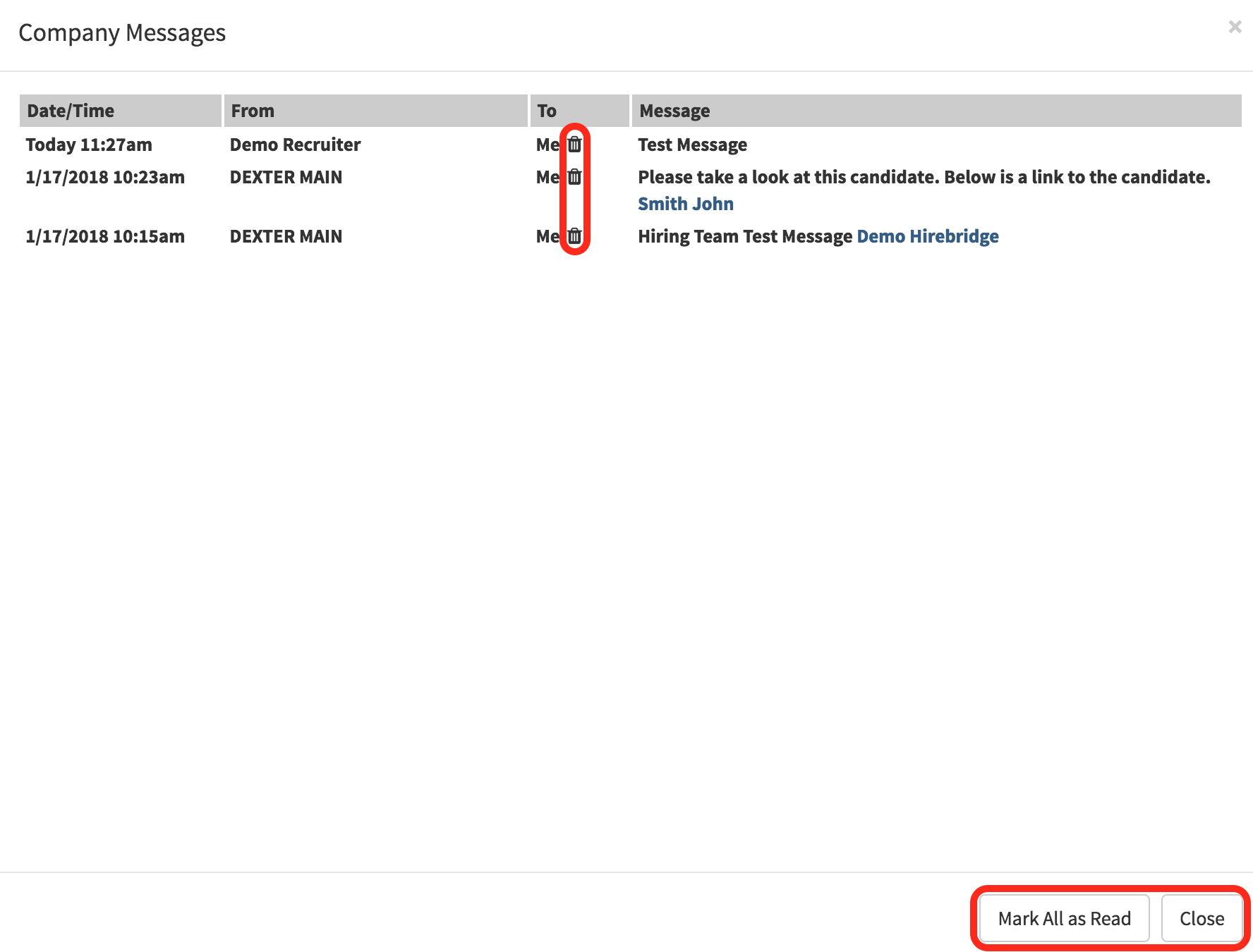
To close the messages tab select the "Close" button at the bottom right corner.
Tutorial Video