This article will guide you on how to run a Company Interview Schedule Report.
- To access this report select “Reports” in the top navigation bar.
- A drop-down menu will appear where you will select “Report Center”
- After selecting “Report Center” select “Interview Schedule”
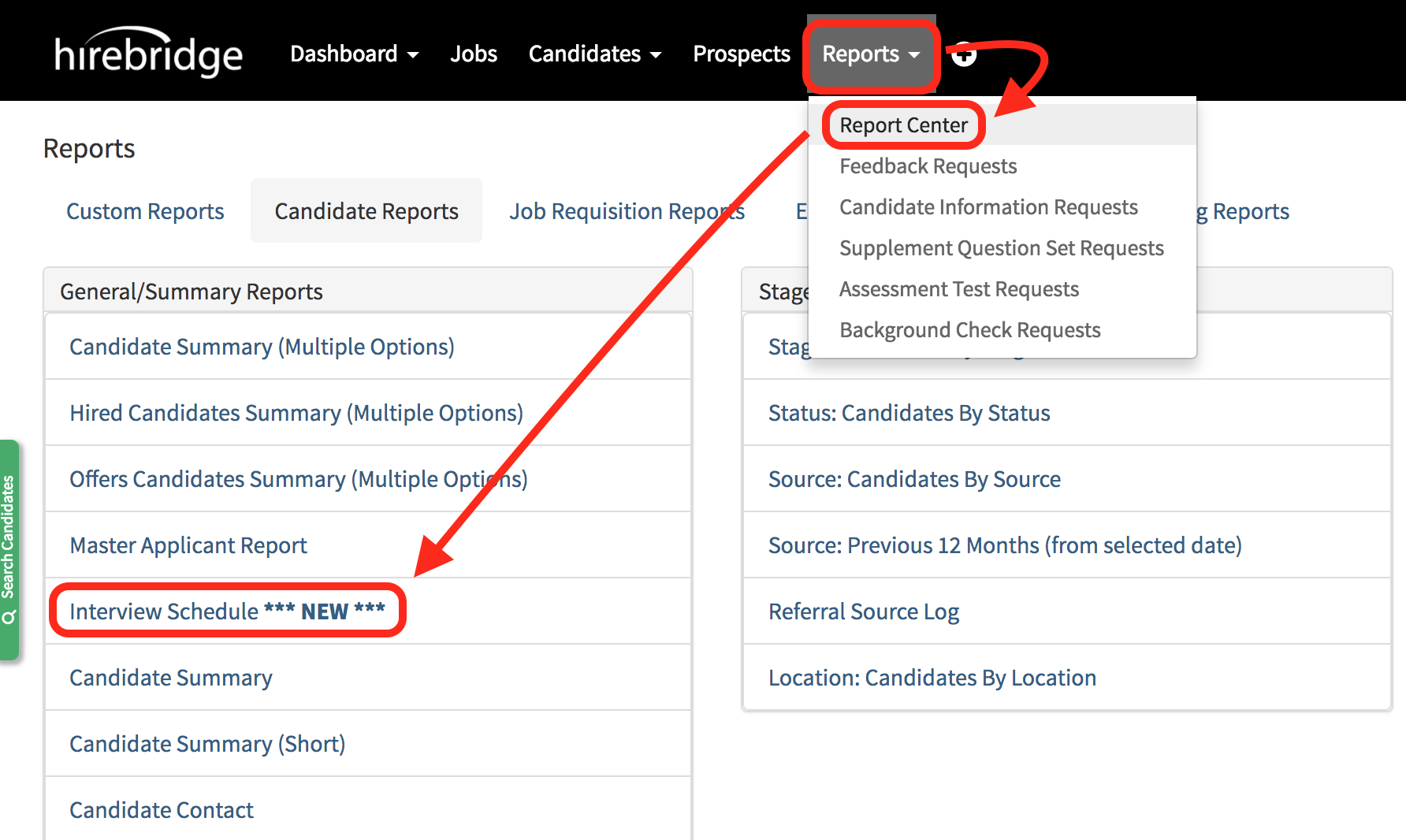
- This will now take you to the Company Interview Schedule Reports page.
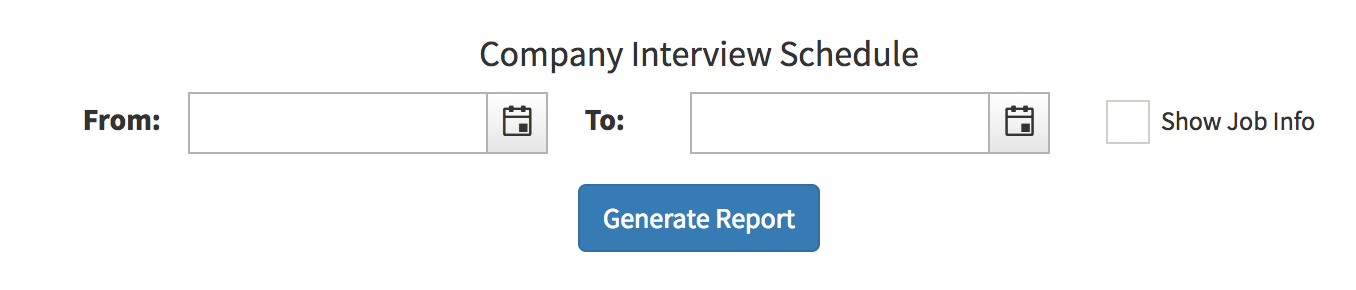
- On this page, you can choose from a specific date range.
- From: - The starting date range to search from
To: - The end of the date range to search from
Show Job Info - The report will include Job Title, Requisition Number, Department and Job Location.
- Below is a sample of how the report within the dates of 10/1/2017 - 10/30/2017 including the "Show Job Info"
- At the bottom, you can also download this report via CSV file by selecting "Export Report Data"
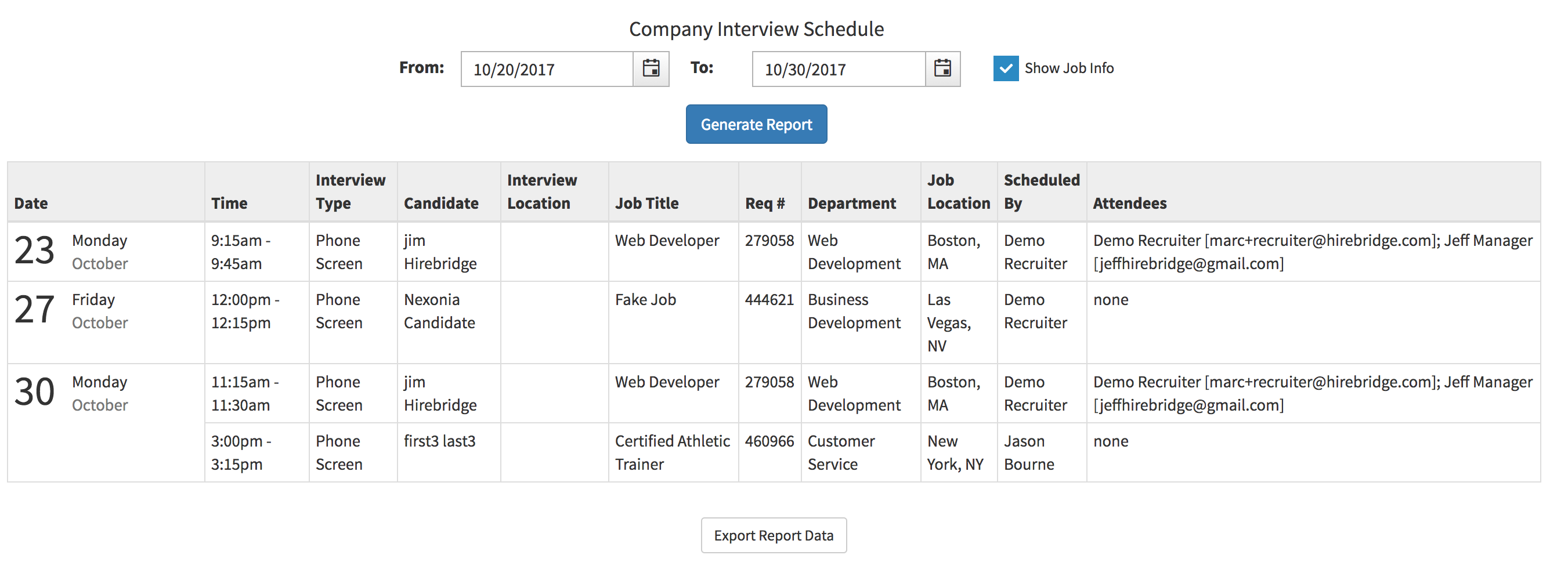
Standard information included in the report:
- Date - Interview date
- Time - Time of Interview
- Interview Type - Type of interview
- Candidate - Candidate name
- Interview Location - Interview Location
- Scheduled By - Individual who scheduled the interview
- Attendees - Attendees name and Email address
Show Job Information includes the following below:
- Job Title - Title of Requisition
- Req # - Requisition number
- Department - Department of the interview
- Job Location - The location of the job