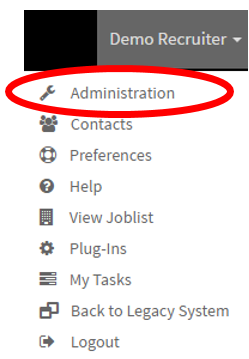
- The first step is to select your username in the top right corner.
- This will open a drop-down list where you will select "Administration".
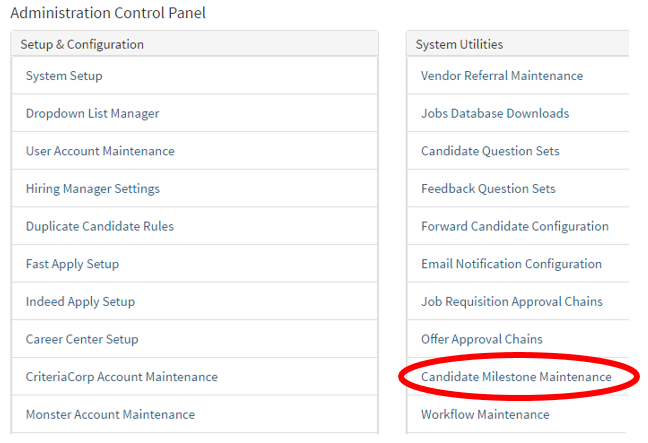
- After selecting "Administration" you will now land on the "Administration Control Panel" page.
- On this page in the "System Utilities" columns, select "Candidate Milestone Maintenance".
- This will take you to the "Candidate Milestone Setup" page.
- On the Milestone page, you have the ability to create a milestone for actions that were taken.
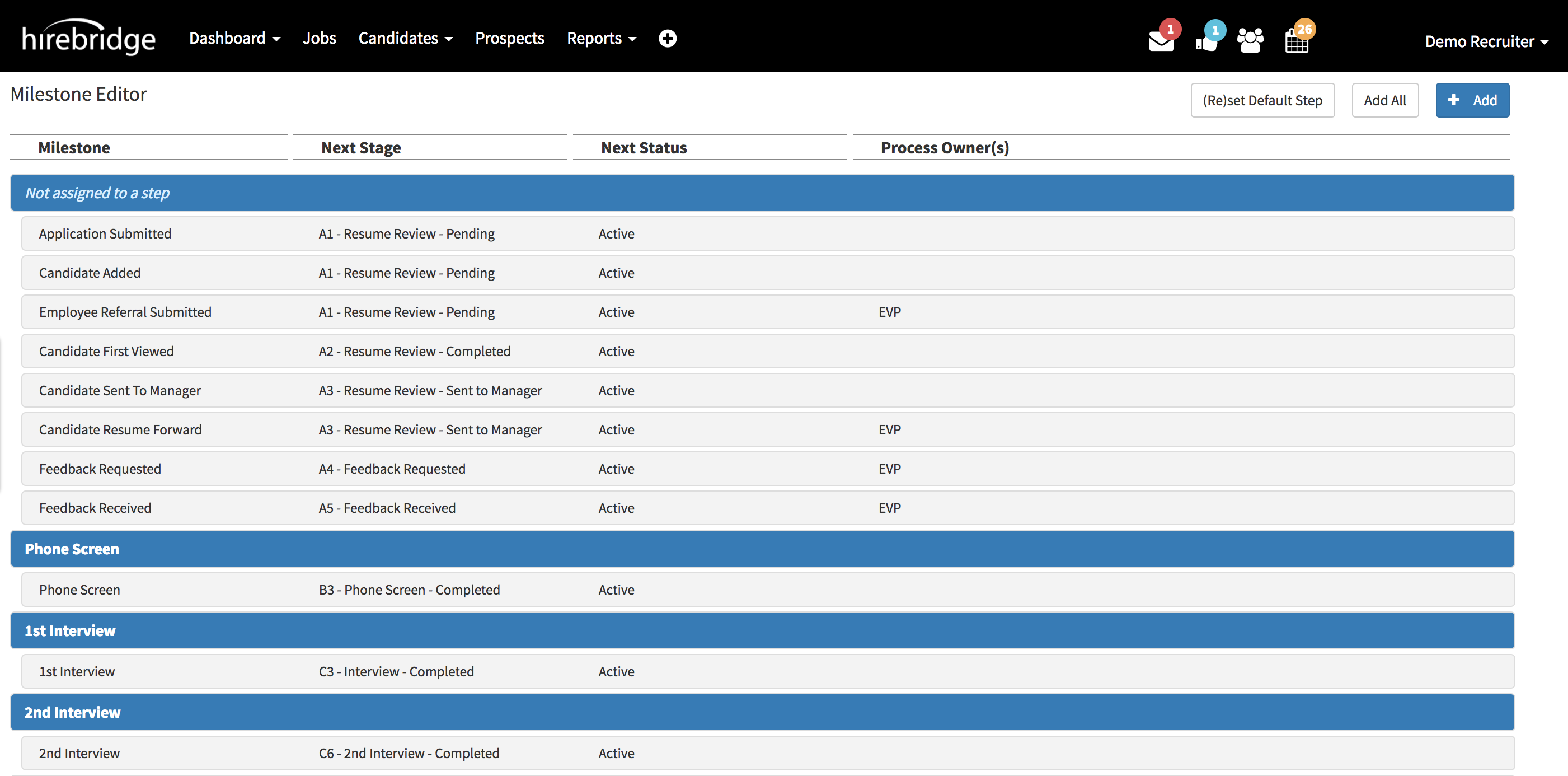
- To Edit a milestone double click on the milestone.
- For this example, we will select "Feedback Requested"
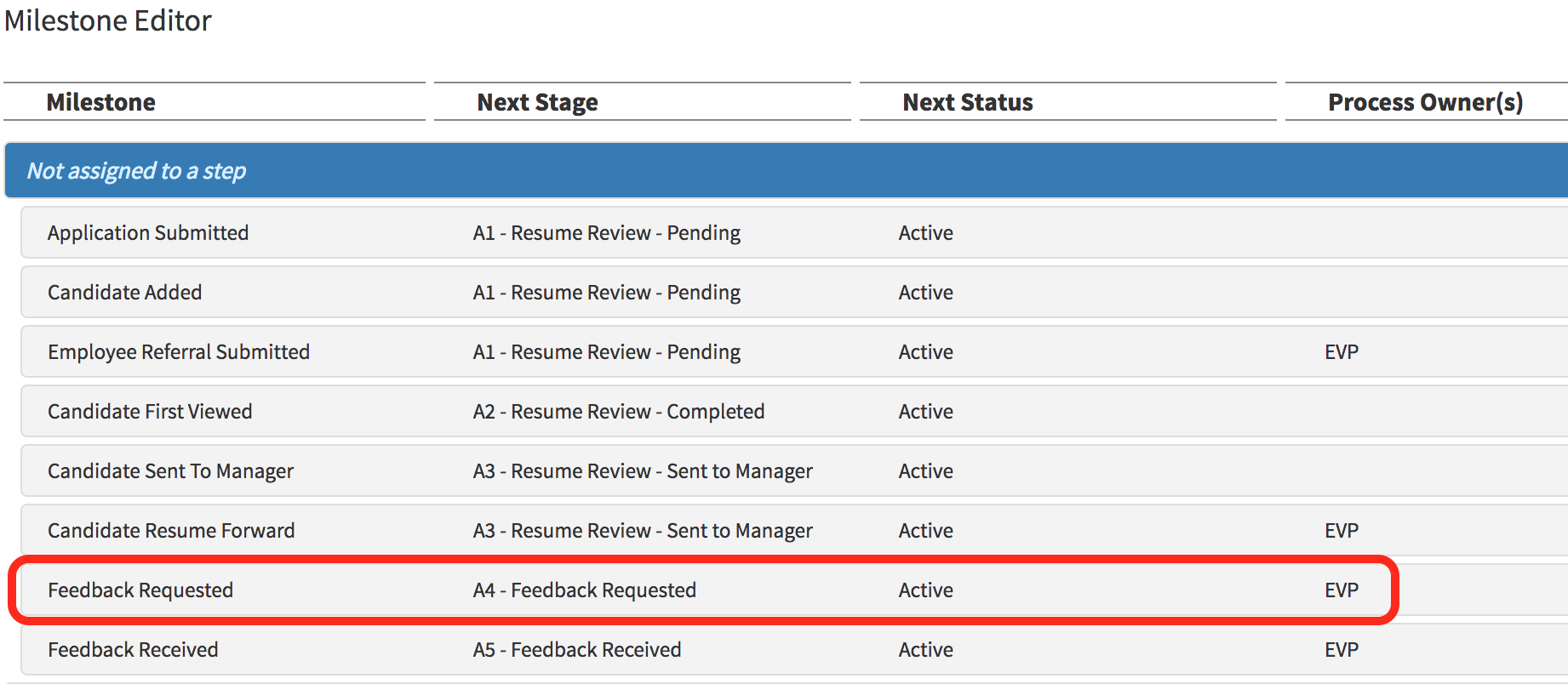
- Double-clicking on the milestone will open the milestone editor (Displayed below)
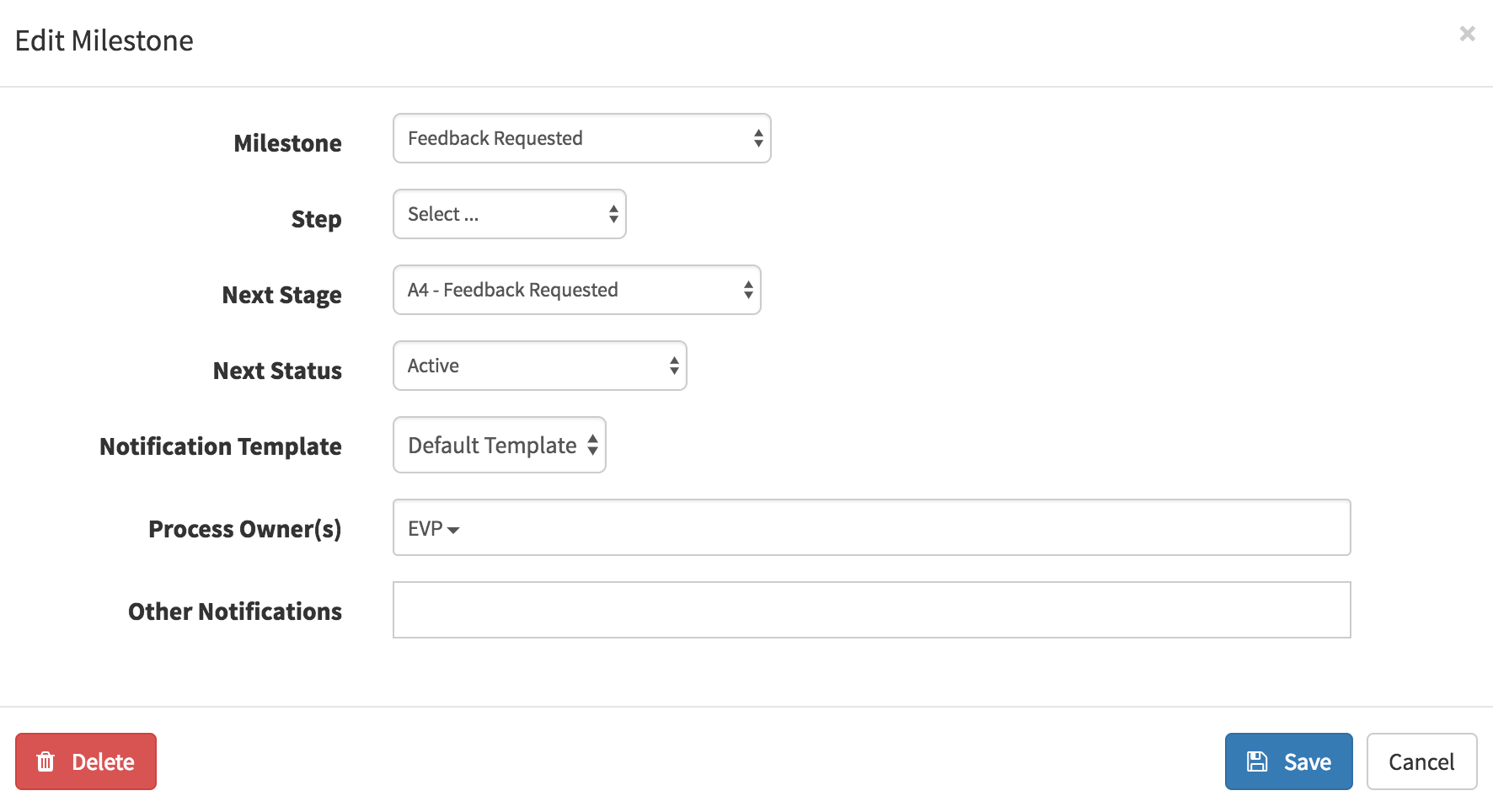
- This milestone can be interpreted as when the candidate feedback requested. The candidate will have a stage of A4 - Feedback Requested with a status of active. The EVP will receive a default template in regards to when feedback is requested.
- This pop-up page will then allow you to delete and edit the milestone.