This article will guide you through the process of sending a Text Message (SMS) to a candidate.
(Please contact Hirebridge if you do not have this feature and would like this feature activated)
- In the candidate's profile, there are two ways to text message a candidate.
- Select the candidate's number in the top right corner outlined below in red.
- Select messages tab then compose a new message and choose Text Message (SMS)
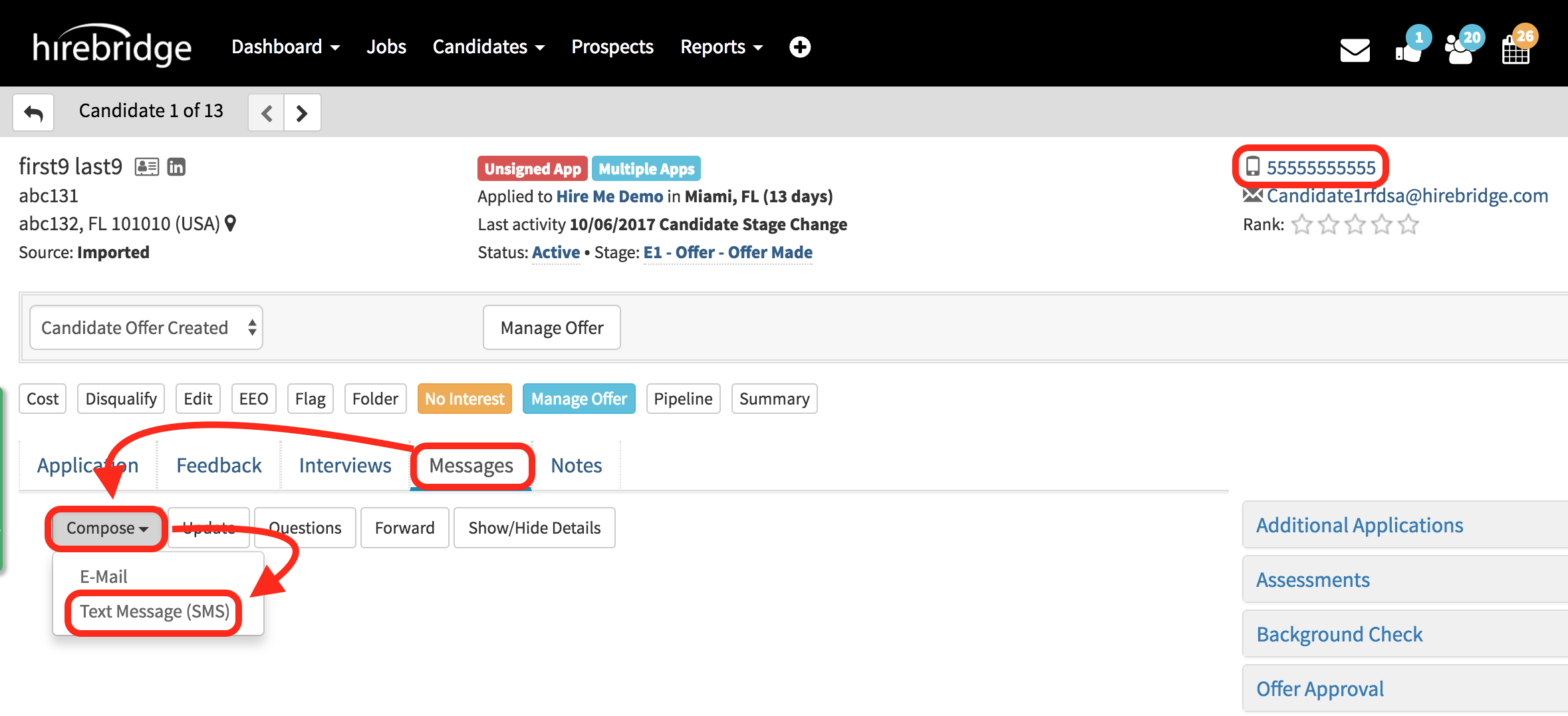
- both of the ways to text a candidate will enable a pop-up (displayed below)
- The next step is to either select from a template created or create a new custom message to send the candidate.
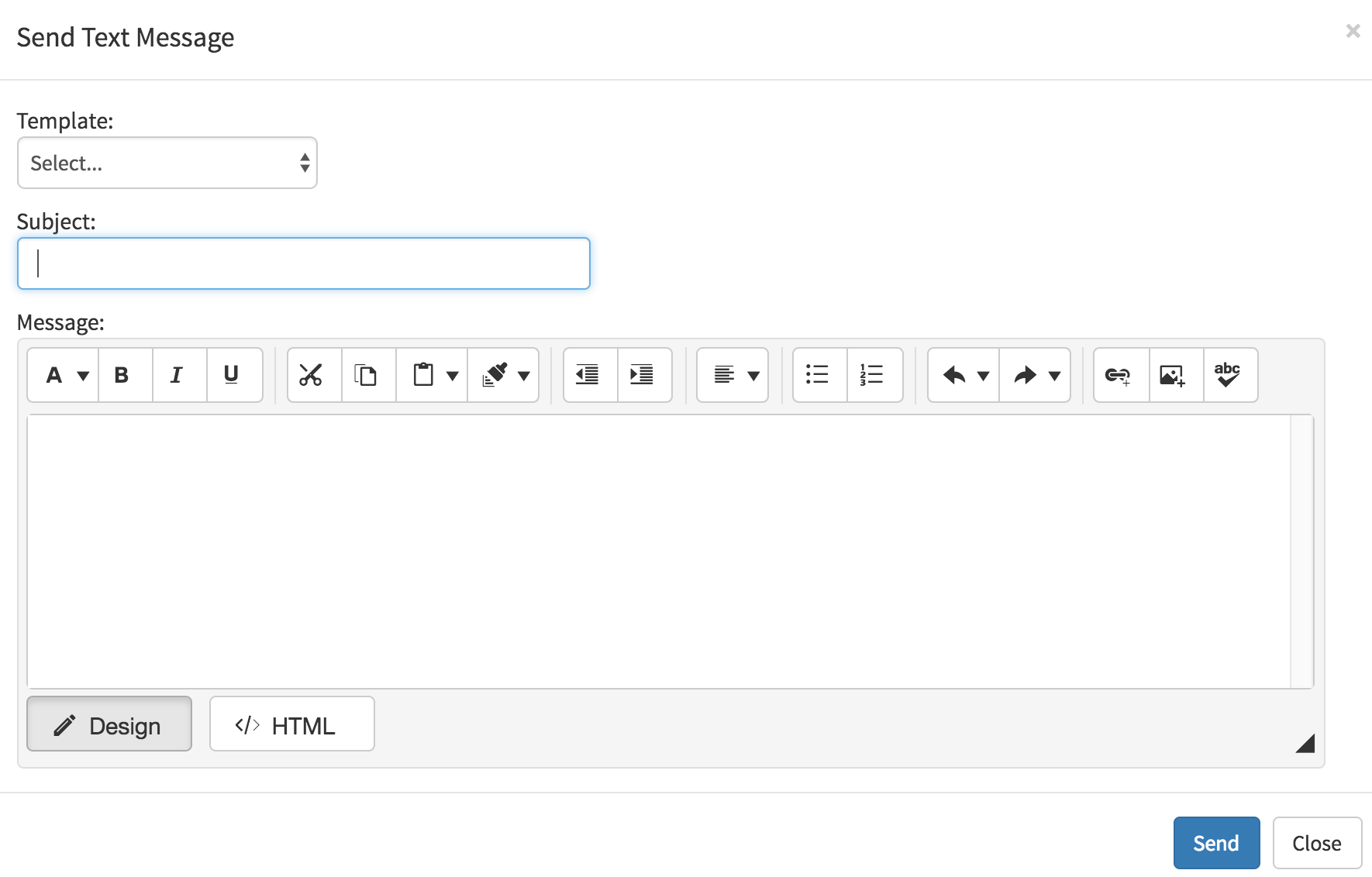
- After you have created the message select the blue "Save" button in the bottom right corner.
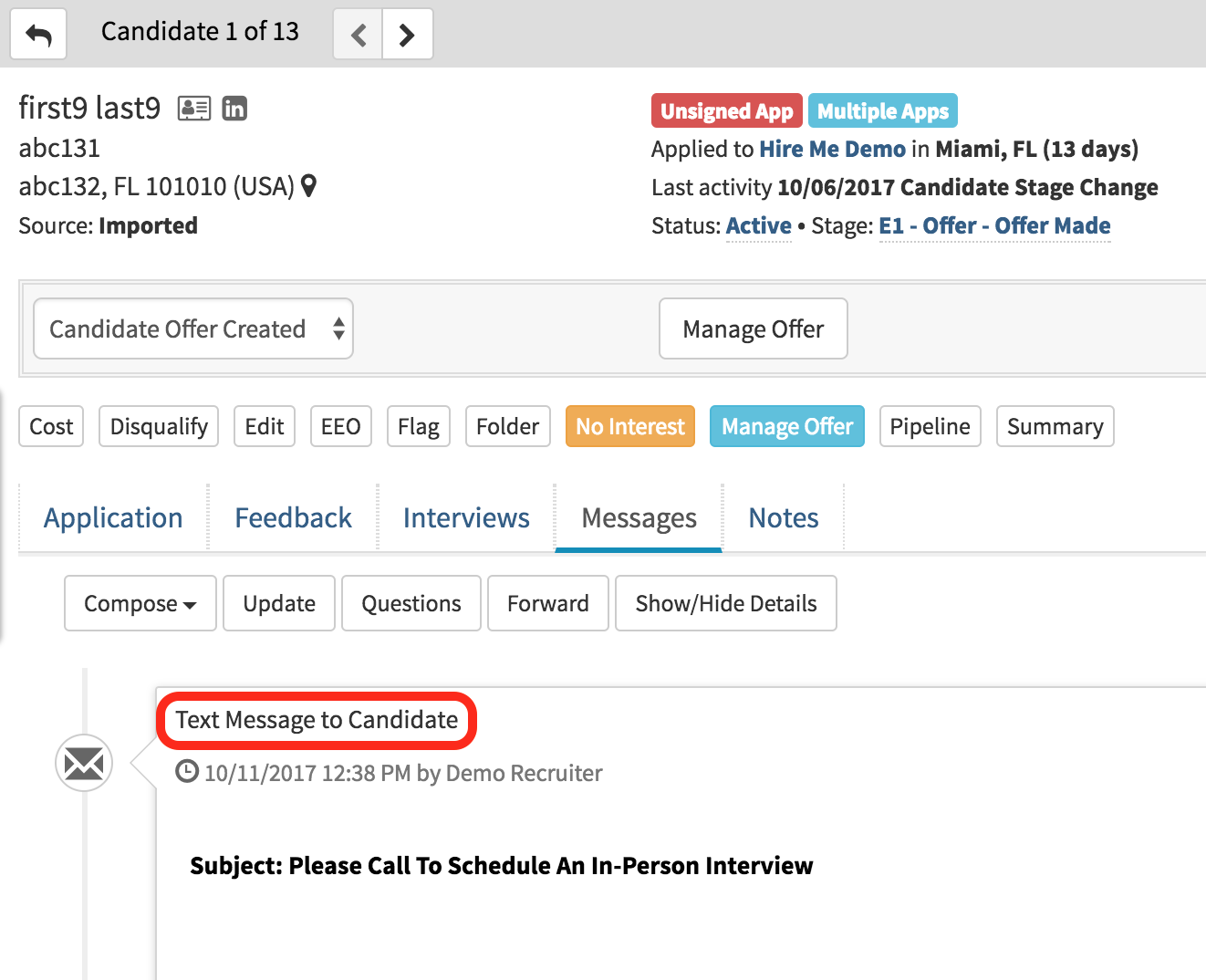
- Once you send the message it will be logged in the messages log.
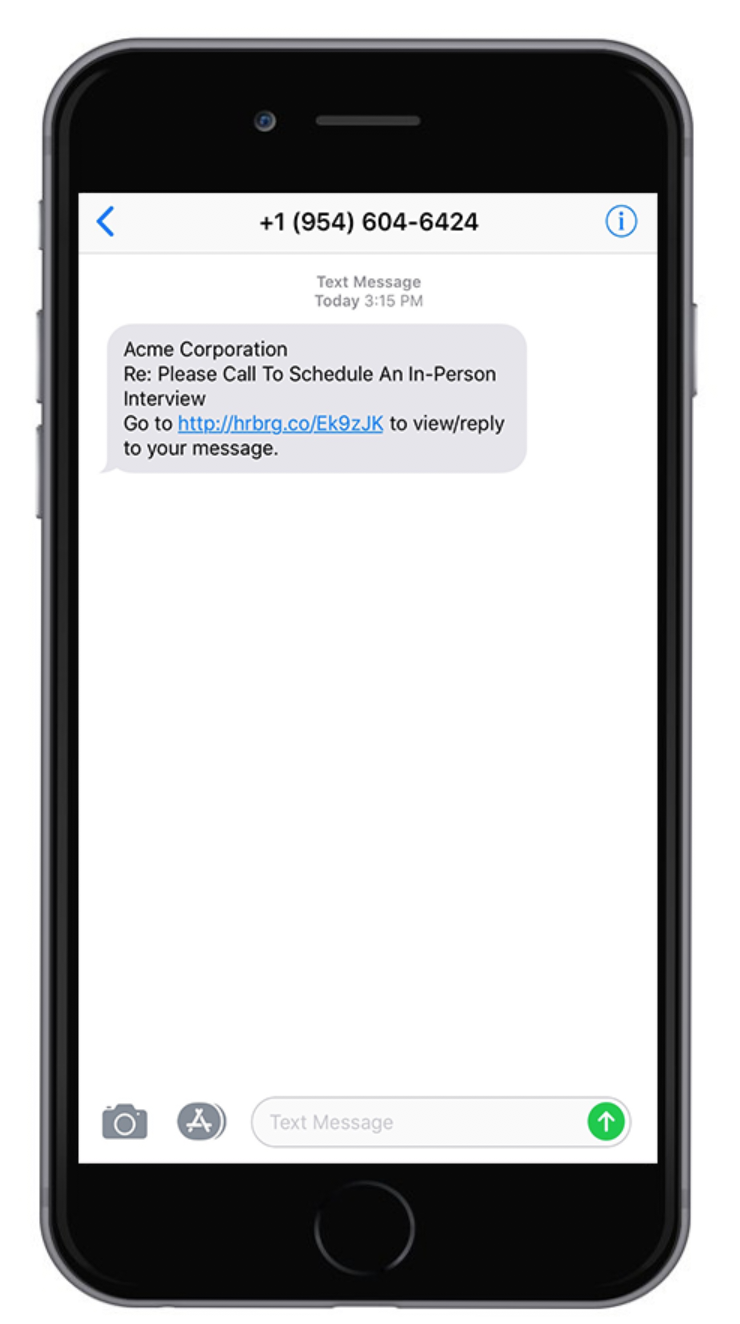
- The candidate will now receive a text message with a link they can go to review the message and reply. (Image below is an example of the text message the candidate will receive.)
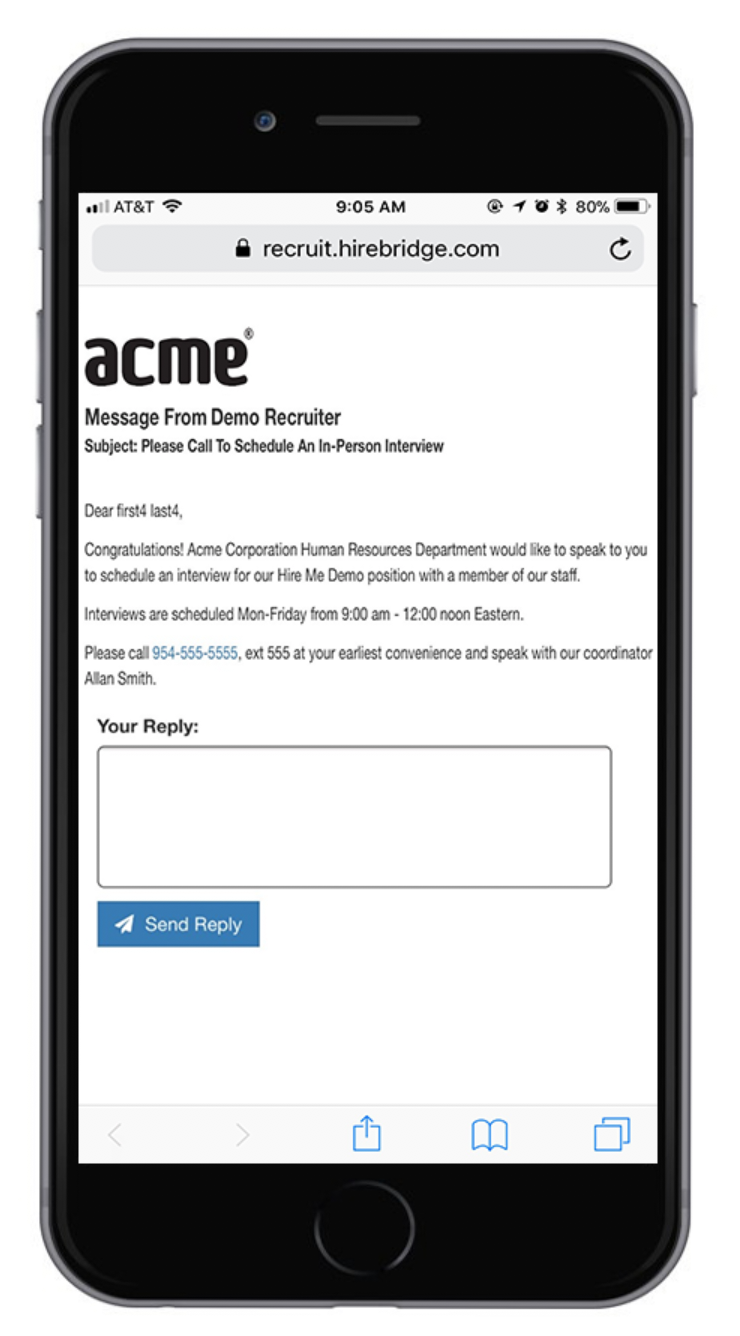
Once the candidate has selected the link they will be directed to a web page where they can read and reply to the message.
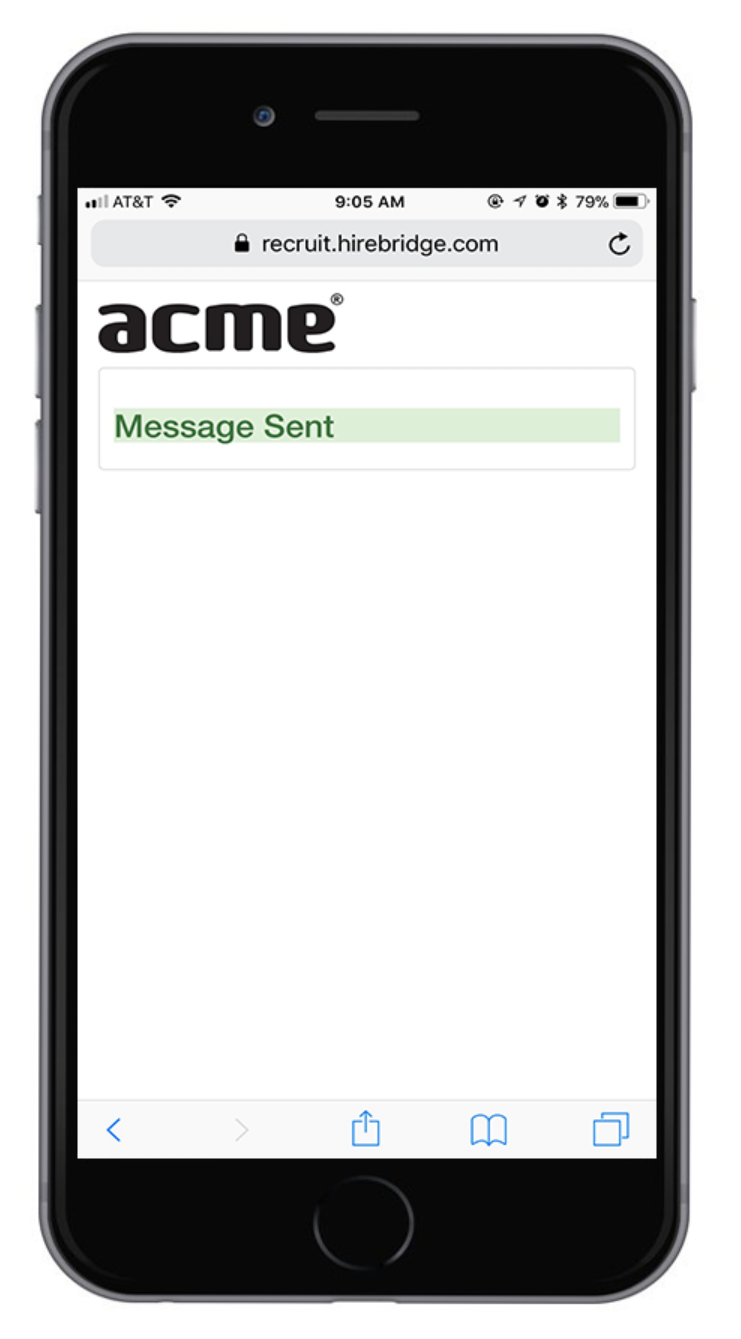
Once the candidate has replied to the message there will be a confirmation message "Message Sent"
- After the candidate replies the sender will receive an email notification that the candidate was replied to their message.