This article will cover how to edit Nearby Search Tab located in the system setup.
Nearby Search is a system setting that, when activated, allows HIRING MANAGERS to search for candidates within a certain pre-defined zipcode radius from their own address, regardless of whether or not the candidates have applied to jobs in the hiring managers pre-defined jobs bucket.
The Nearby Search feature needs to be activated by HIREBRIDGE SUPPORT, so if you are interested in utilizing the NEARBY SEARCH feature, please contact your HIREBRIDGE SUPPORT REPRESENTATIVE and ask to have that feature turned on.
In order to see the SEARCH NEARBY CANDIDATES, you will need to make sure that the HIRING MANAGER account contains the zipcode of that hiring manager.
=======================
The Nearby Search is a filter that will apply when searching for candidates
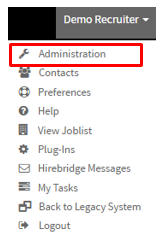
- The first step is to select your username in the top right corner.
- A drop-down menu will appear, this is where you will select "Administration"
- This will now take you to the "Administration Control Panel".
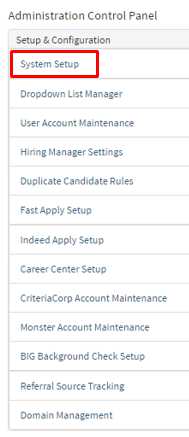
- On this page in the column Setup & Configuration, select "System Setup".
- System setup will now go to the Company Preferences page where you will select "Nearby Search".
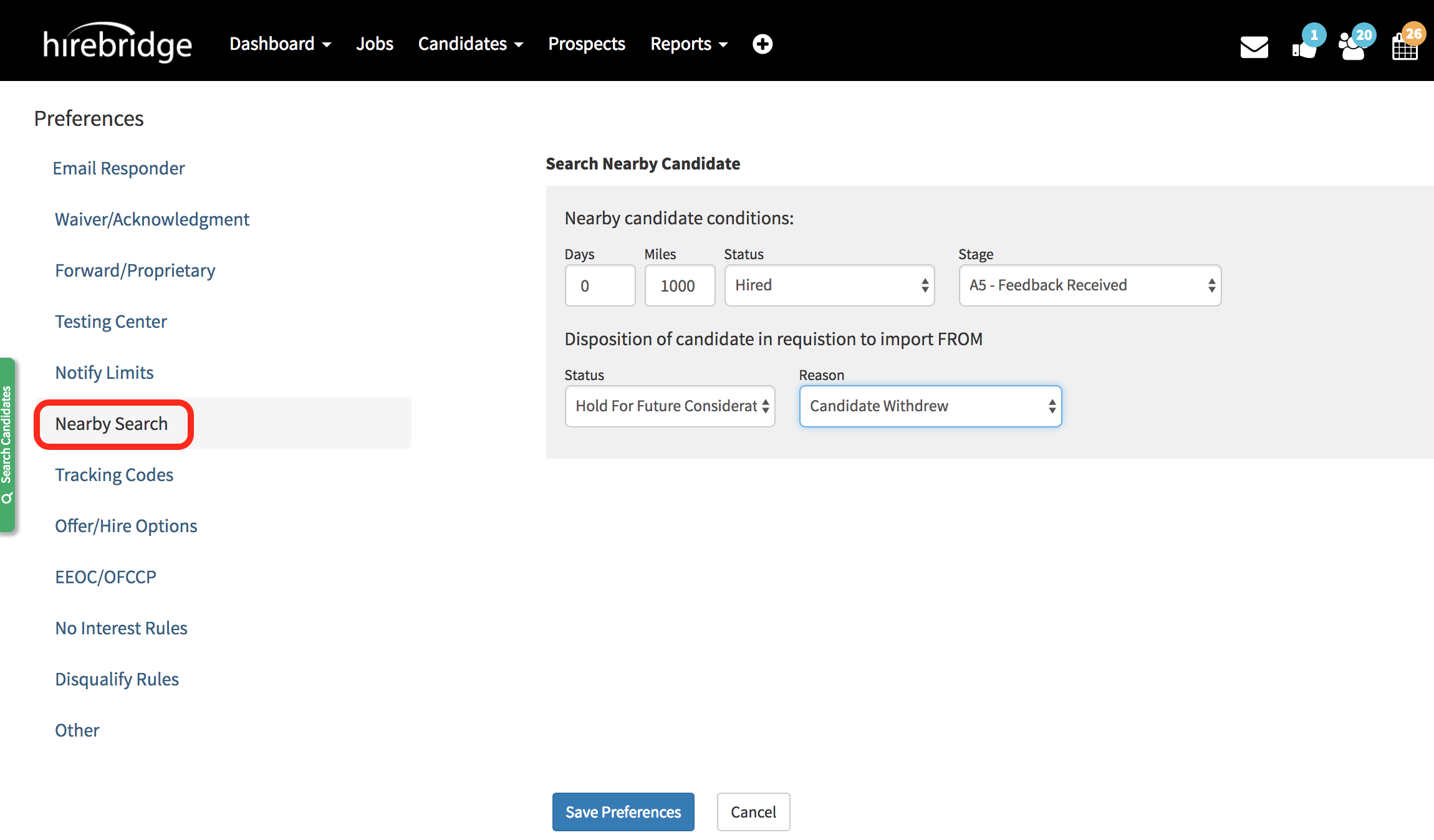
Search for Nearby Candidates with these conditions.
- Days - Candidates at least specified amount of days old
- Miles - Candidates within a certain mile radius
- Status - Candidates with this status
- Stage - Candidates with this stage
Disposition of candidate in requisition to import from - enables you to disposition candidates within the current requisition that you are importing from.
Status - a selection of candidate status in original requisition.
Reason - candidates reasoning set in original requisition.
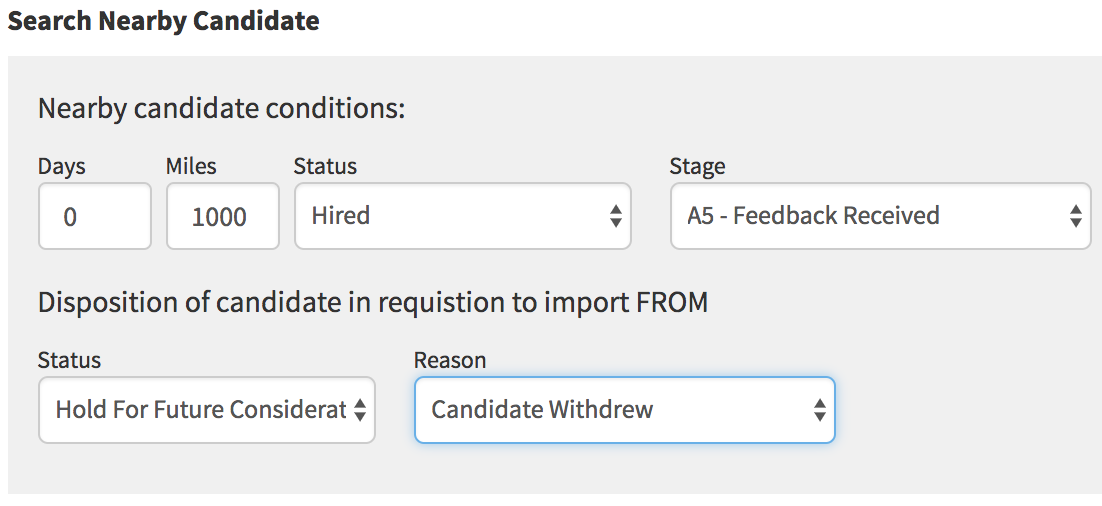
These candidate filters will apply on top of the filters applied when you are searching for a candidate.
Once the preferences have been saved select "Save Preferences"