Steps to creating a new job
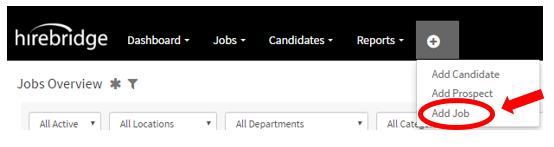
In the Navigation / menu bar click the Plus Sign:

Next, select Add Job:
You should now be on the Job Requisition Editor page. This page allows you to create a job by either filling in the form with all required fields or by using a job template.
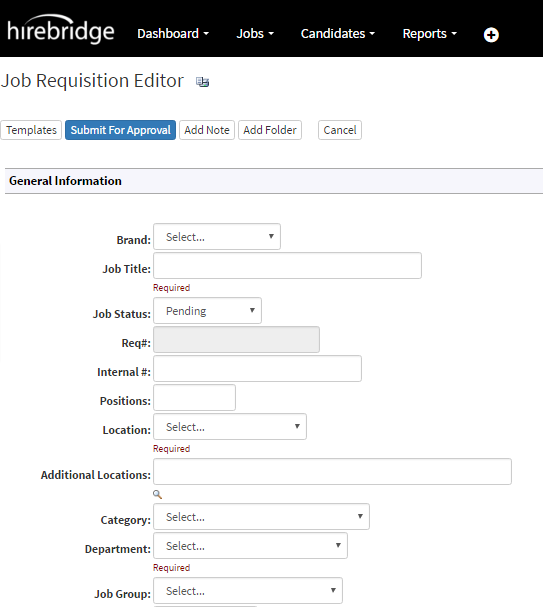
If choosing a template, the form will be populated accordingly. If manually entering information the required fields will need to be filled in by the user.
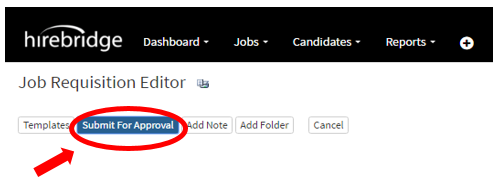
*Based on user profile you should see a blue button labeled either “Submit For Approval” or “Next”*
- After filling in the required fields to create the job click the Submit for Approval button in blue.
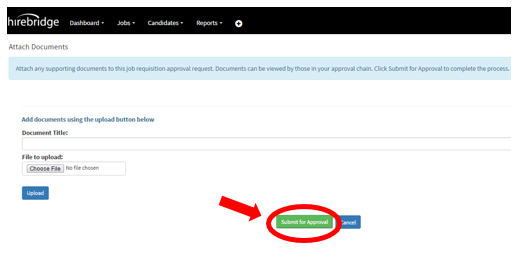
- The next page will now allow you to attach any supporting documents for those in your approval chain to view.
- Click the “Choose File” button to select the documents you want to upload.
- Then click on the blue “Upload” button below it to upload the files into the system.
- To finish and create the job click on the green “Submit for Approval” button.