This article will show how a Hirebridge users could easily share a job.
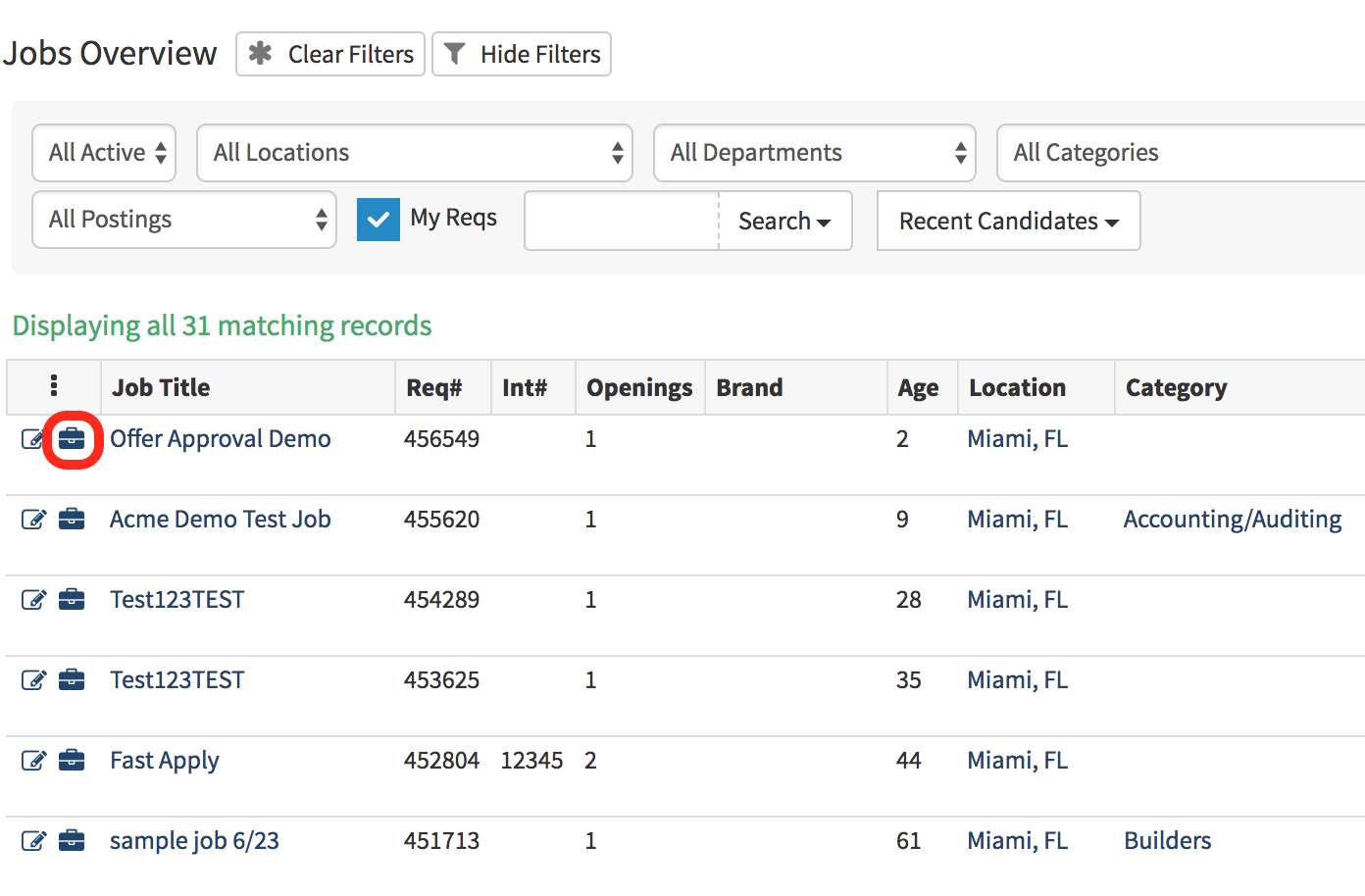
- Next to the Job Title select the Briefcase icon.
- This will take you to the Requisition Overview page.
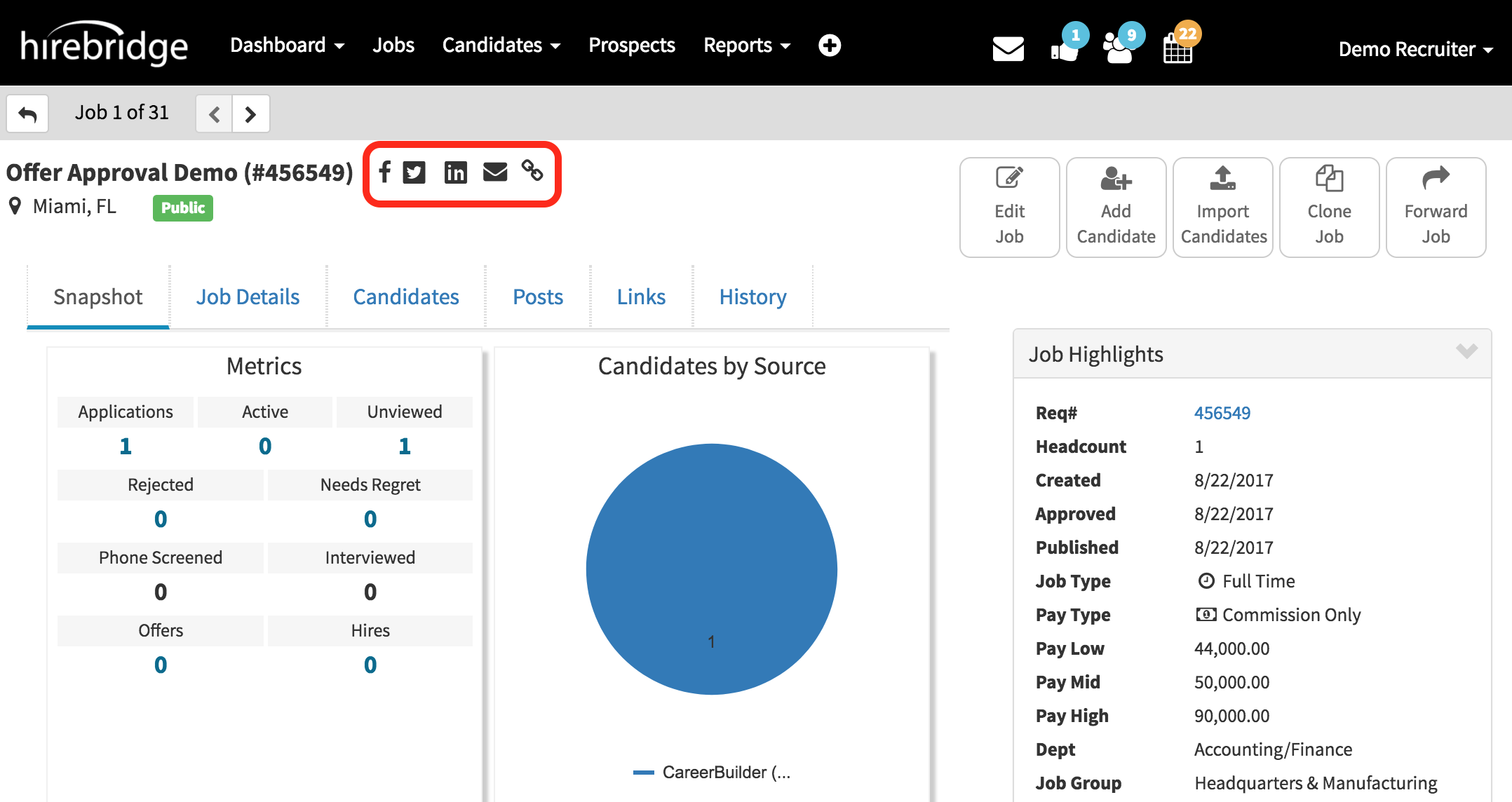
- At the top of the Requisition Overview page, there are five icons outlined next to the name and requisition number.
- Each of those icons are quick and easy ways to share the requisition.
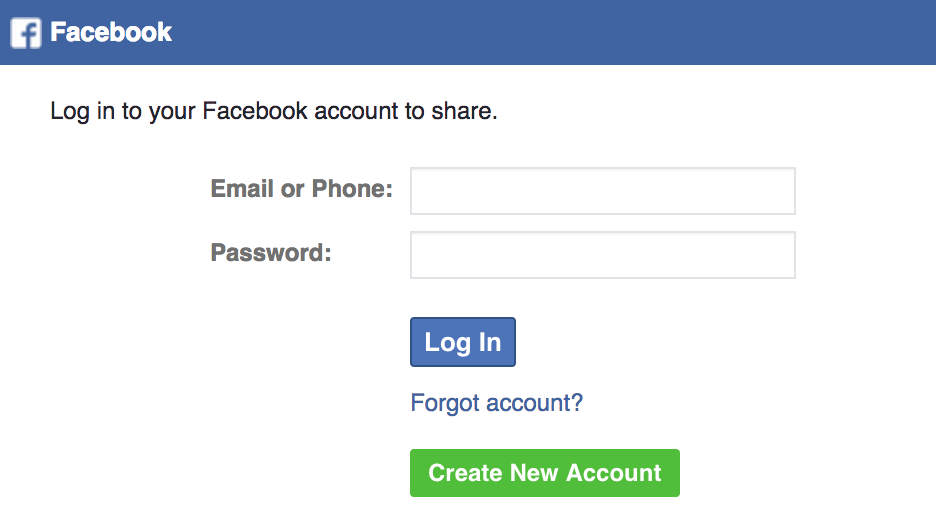
- The first icon we will go over is the Facebook icon.

- Selecting the icon will redirect you to facebook and allow you to post the job using your Facebook account.
- The next Icon is the Twitter Icon.

- Selecting this icon will allow you to tweet and share this job to your followers.

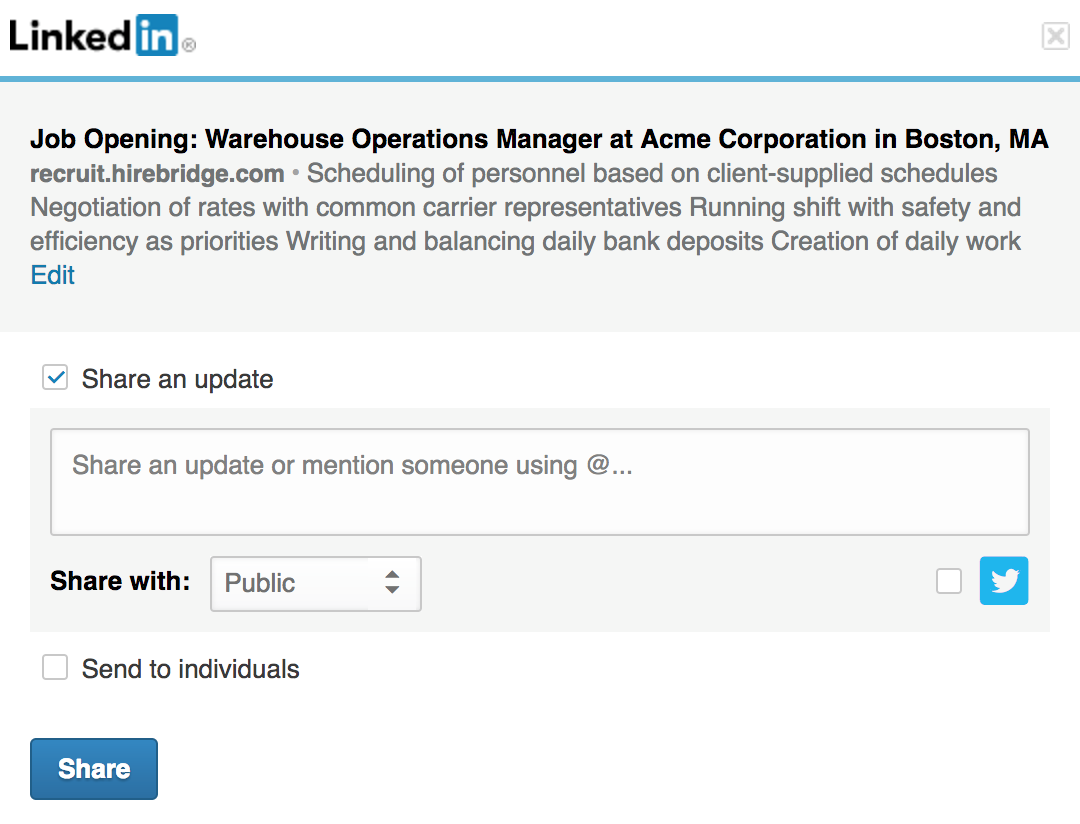
- The LinkedIn icon will allow you to share this job through your LinkedIn profile.

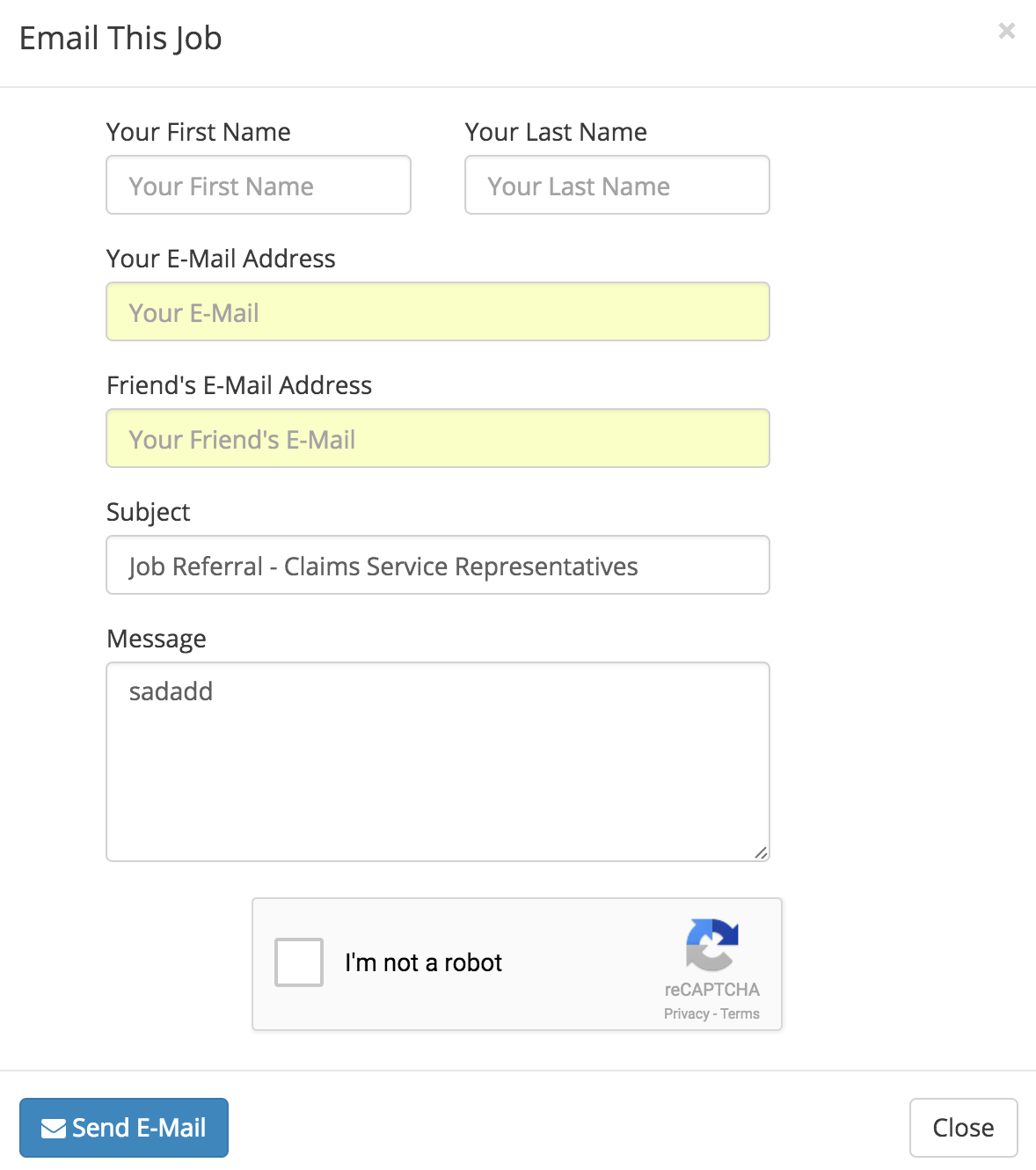
- The Envelope icon will allow you to share this job via email.

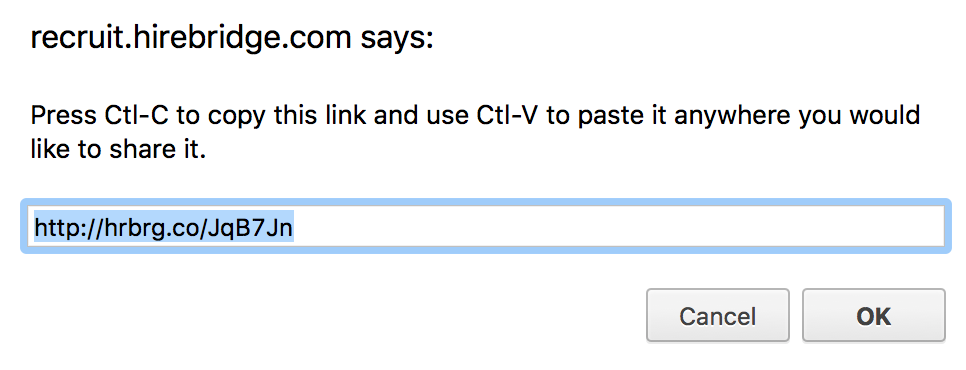
- The Chain icon will allow you to share the job via web link.
- You will be able to copy and paste this link to share the job.