Managing your password on Hirebridge is crucial for maintaining the security and accessibility of your account. Whether you're setting up your password for the first time, need to reset it due to forgetfulness, or simply wish to update it for security reasons, Hirebridge's process is designed to be user-friendly and secure. The system ensures that you can manage your password independently, without the need for intervention from Hirebridge or your company's Admin team. The process is straightforward and emphasizes user security, with time-sensitive reset links and a requirement for personal handling of password changes.
Important Reminders:
- Account Responsibility: You are solely responsible for your account, including the password. Hirebridge or your company's Admin team cannot reset or create passwords on your behalf.
- One-Time Use: Each reset link is for one-time use and expires after 15 minutes for security purposes. If you click on an expired link, you will be directed to an error screen.
- Repeated Attempts: If your new password doesn't work, ensure you're entering it correctly. If needed, use the "Forgot Password?" link again for a new reset email.
- Request a Reset Link: Go to the login page and select the "Forgot Password" option. This will allow you to receive an email with a link to reset your password. Remember, the password itself will not be sent via email; you'll need to use the provided link.
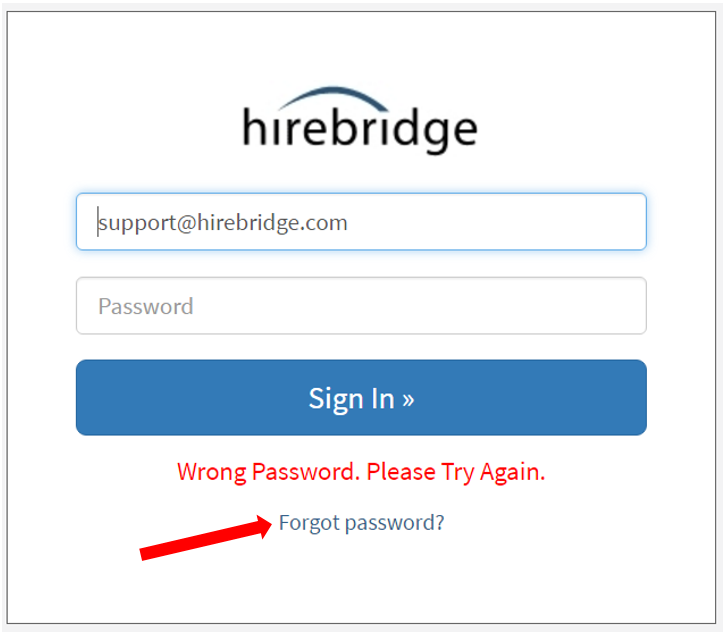
- Time-Sensitive Link: The reset link is time-sensitive for enhanced security, expiring after 15 minutes. If you don't use the link within this timeframe, simply request a new one by revisiting the "Forgot Password" link on the login page. You can do this as many times as necessary.
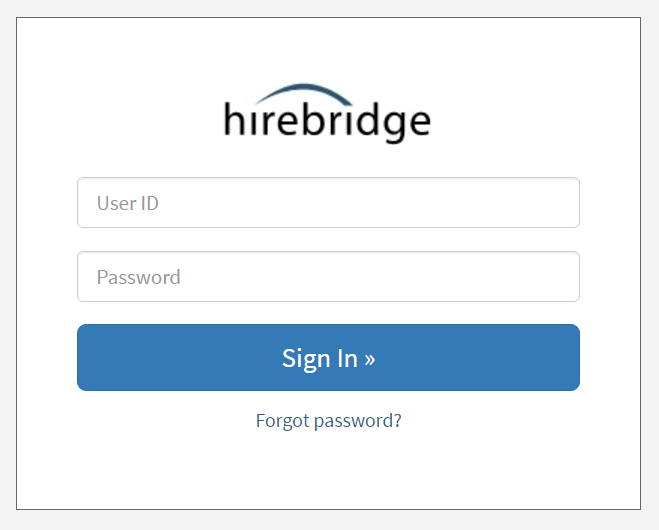
- Initiate the Reset Process: On the login page, click on "Forgot password" located below the login fields. In the pop-up that appears, confirm your email address and hit "Send Link."
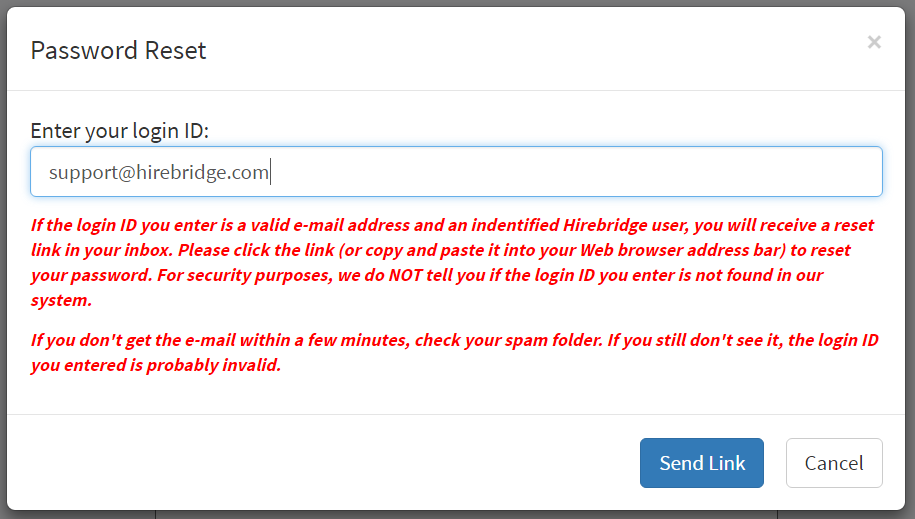
- Check Your Email: Look for an email with the reset link, which should arrive almost immediately. Your network and email settings can affect the timing.
- Reset/Create Your Password: Click the link in the email to open the password reset or creation page. You'll have a 15-minute window to set your new password. If you miss it, just request a new email.
Click on the link shown in the email below to reset/create your password.
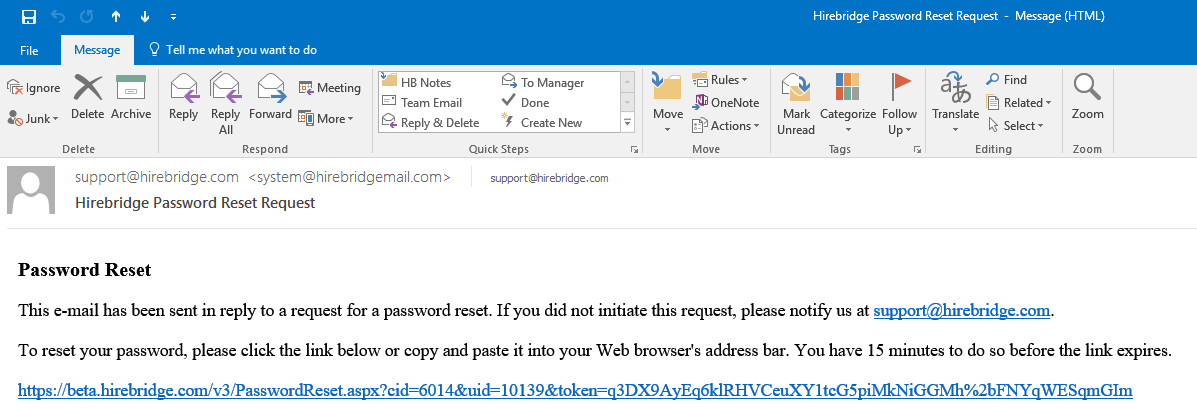
- Set a New Password: On the Change Password screen, enter your new password and confirm it. Make a note of this password for future logins.
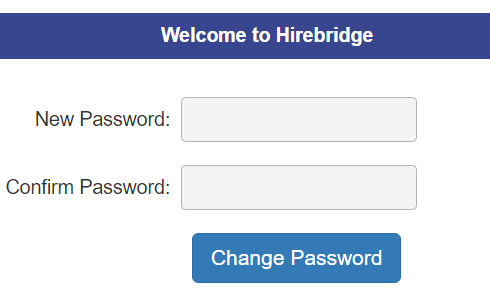
- Finalize the Process: Click "Change Password" to complete the process. You will be directed back to the Hirebridge login page, where you can log in with your new password.
Important Reminders:
- Account Responsibility: You are solely responsible for your account, including the password. Hirebridge or your company's Admin team cannot reset or create passwords on your behalf.
- One-Time Use: Each reset link is for one-time use and expires after 15 minutes for security purposes. If you click on an expired link, you will be directed to an error screen.
- Repeated Attempts: If your new password doesn't work, ensure you're entering it correctly. If needed, use the "Forgot Password?" link again for a new reset email.
By following these steps, you can securely and efficiently manage your password for your Hirebridge account.